Keeping your VPS password secure is essential to maintaining reliable and protected access to your server. If you have forgotten your current password, need to update it for security reasons, or have been instructed to reset it, following the correct process will help prevent login issues and ensure your new credentials are properly saved.
This guide walks you through the complete VPS password reset process, including how to create a new secure password and apply the change. For security purposes, avoid sharing your VPS password with anyone and do not store it in plain text, screenshots, emails, or other easily accessible locations. We recommend using a reputable password manager to securely store your credentials.
Follow the steps below to reset your VPS password, verify the change, and securely save your new credentials for future access.
Step 1. Log in to your user account via: https://partners.thinkhuge.net
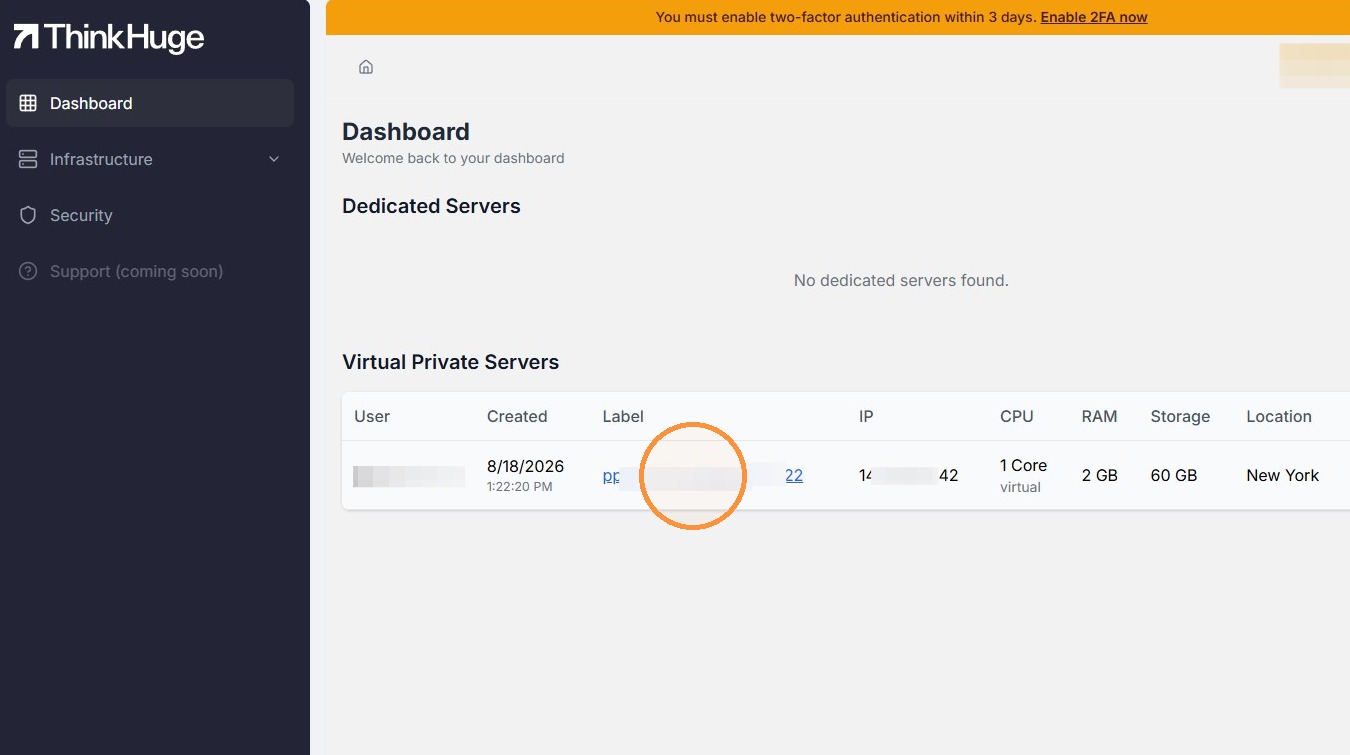
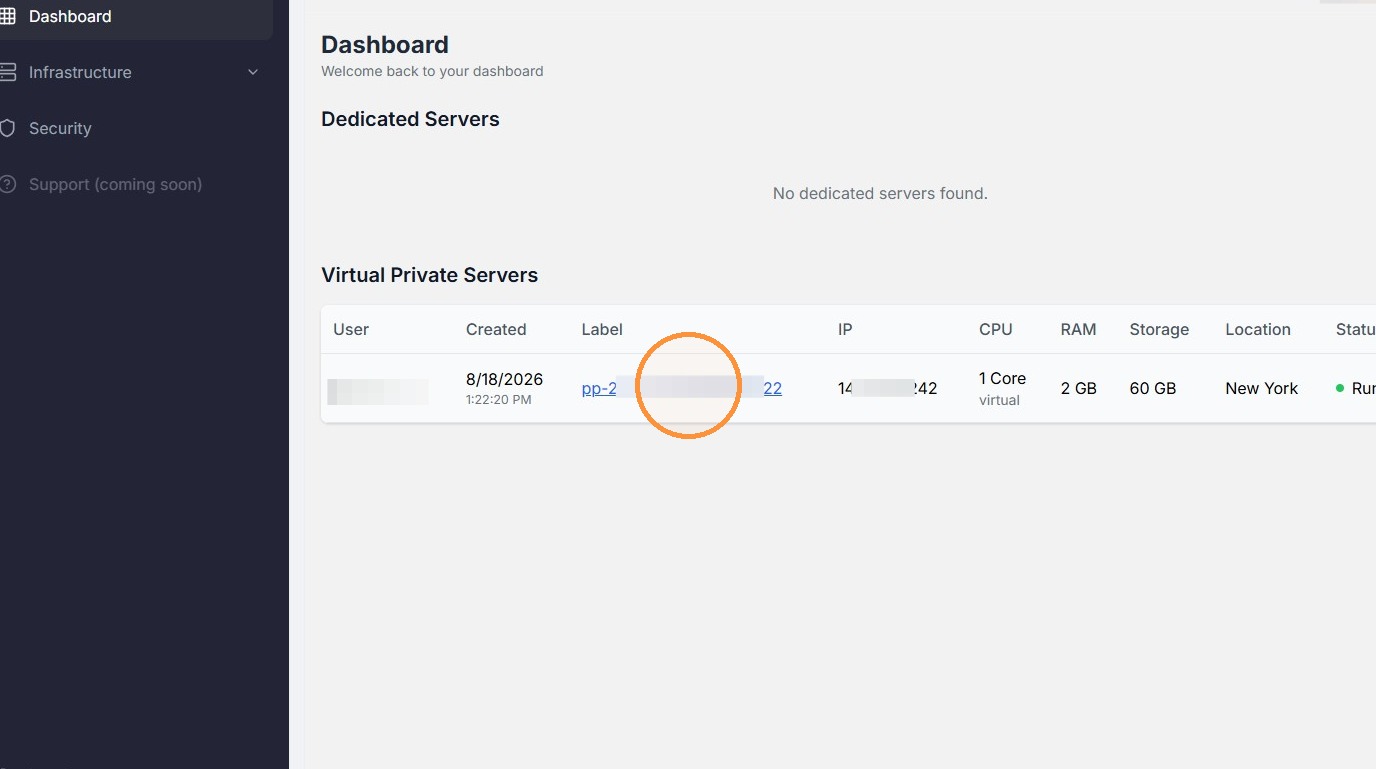
Step 2. Click on the product link under Label section
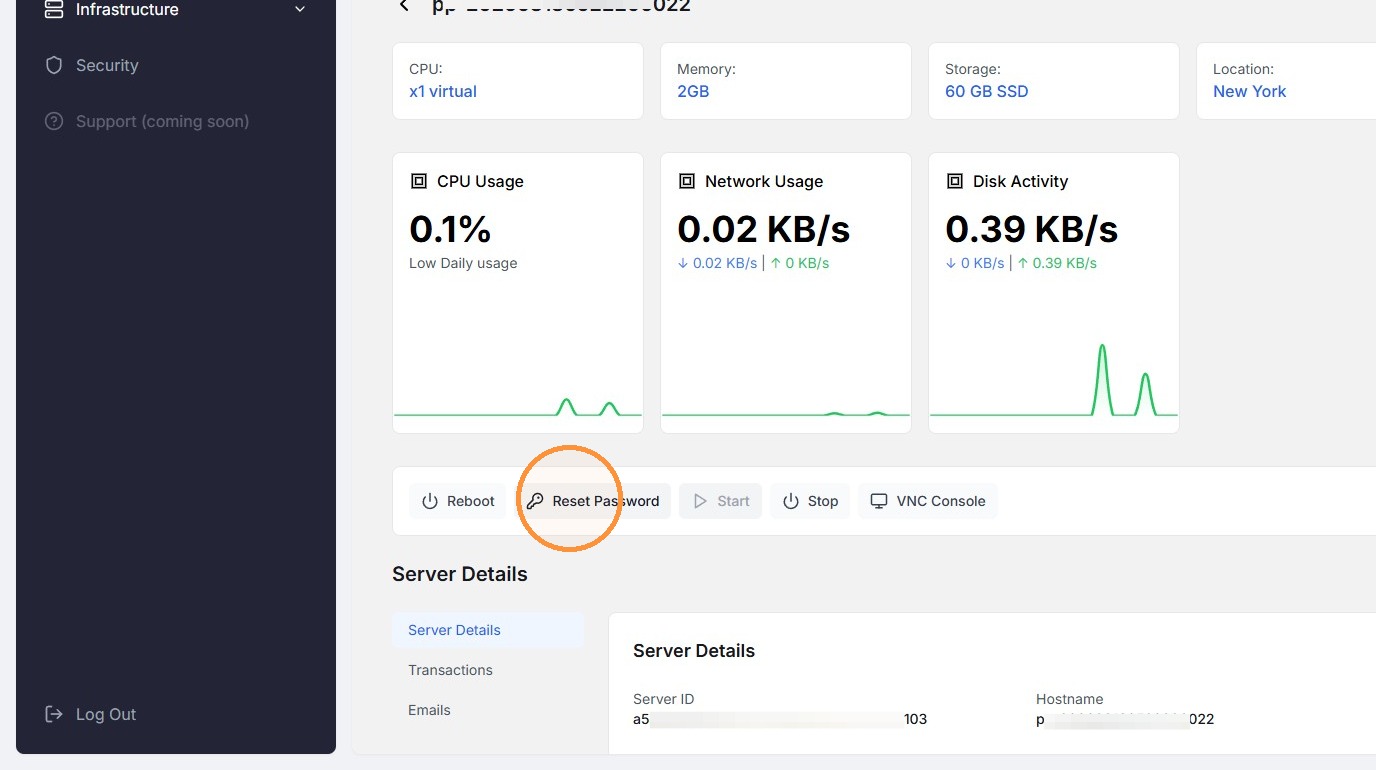
Step 3. Click "Reset Password"
Step 4. Click "Copy" to get the new password then click "I've Saved the Password".
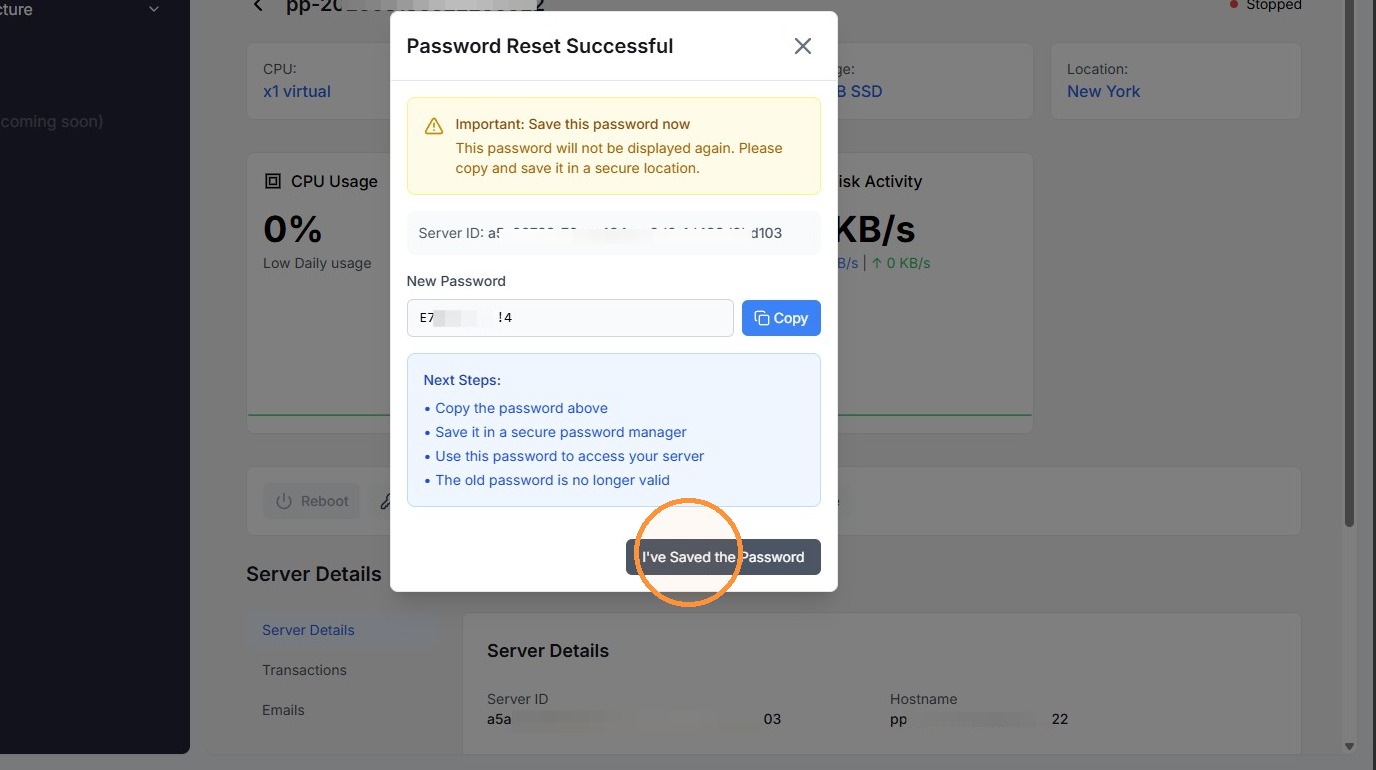
Once done, make sure to keep a copy of your new password and save or memorize it for future use.
Was this article helpful?
That’s Great!
Thank you for your feedback
Sorry! We couldn't be helpful
Thank you for your feedback
Feedback sent
We appreciate your effort and will try to fix the article