The Users section in ThinkHuge Partner Portal allows you to manage the people who have access to your account and infrastructure. From here, you can view existing users, review their details, and create new users when additional team members or administrators need access.
This guide walks you through where to find the Users section and how to add a new user to your account.
Log in to your partner's account via: https://partners.thinkhuge.net
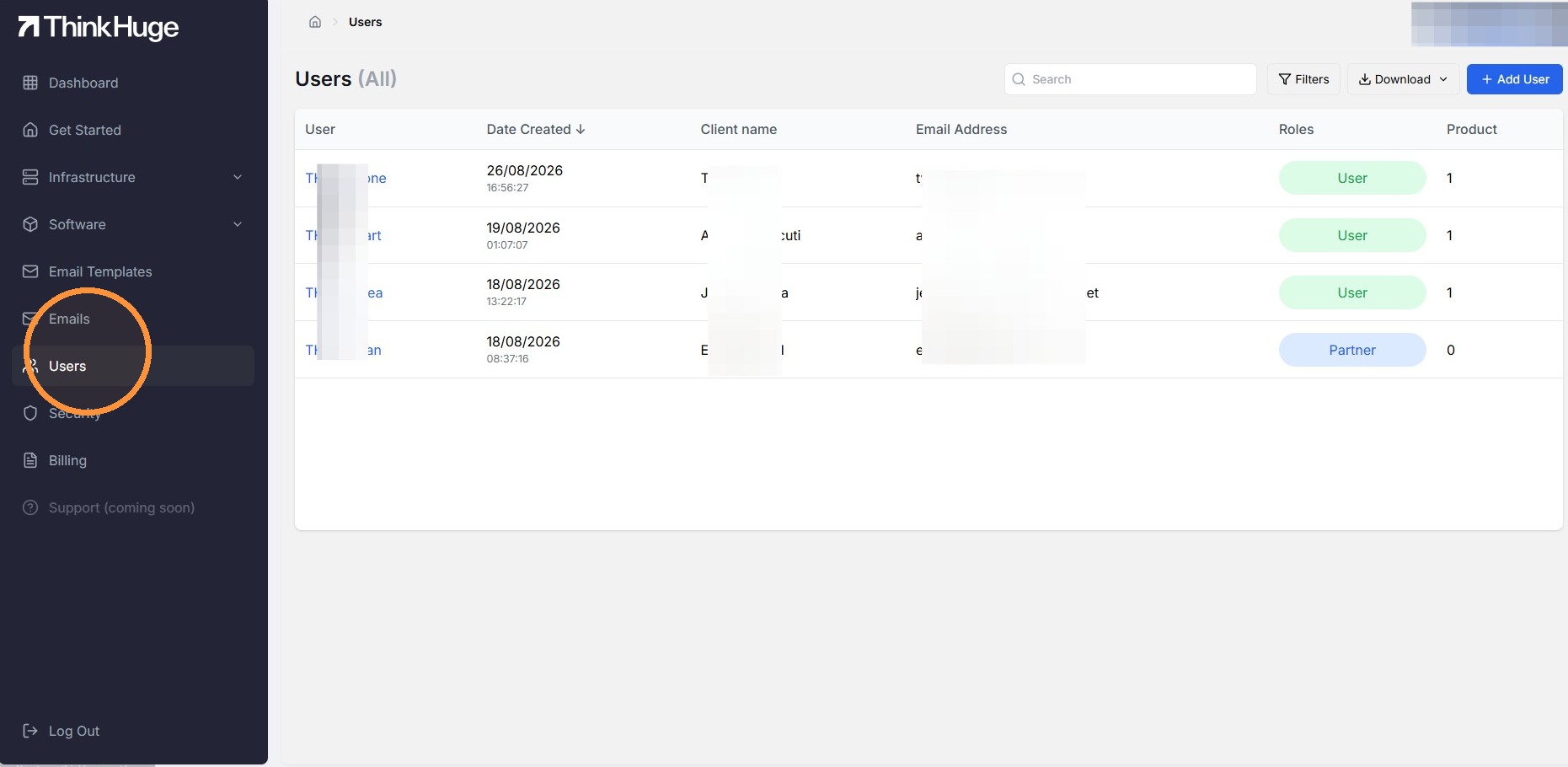
From the dashboard, look for USERS section and click on it.
Here you can view all the active users on your partner portal.
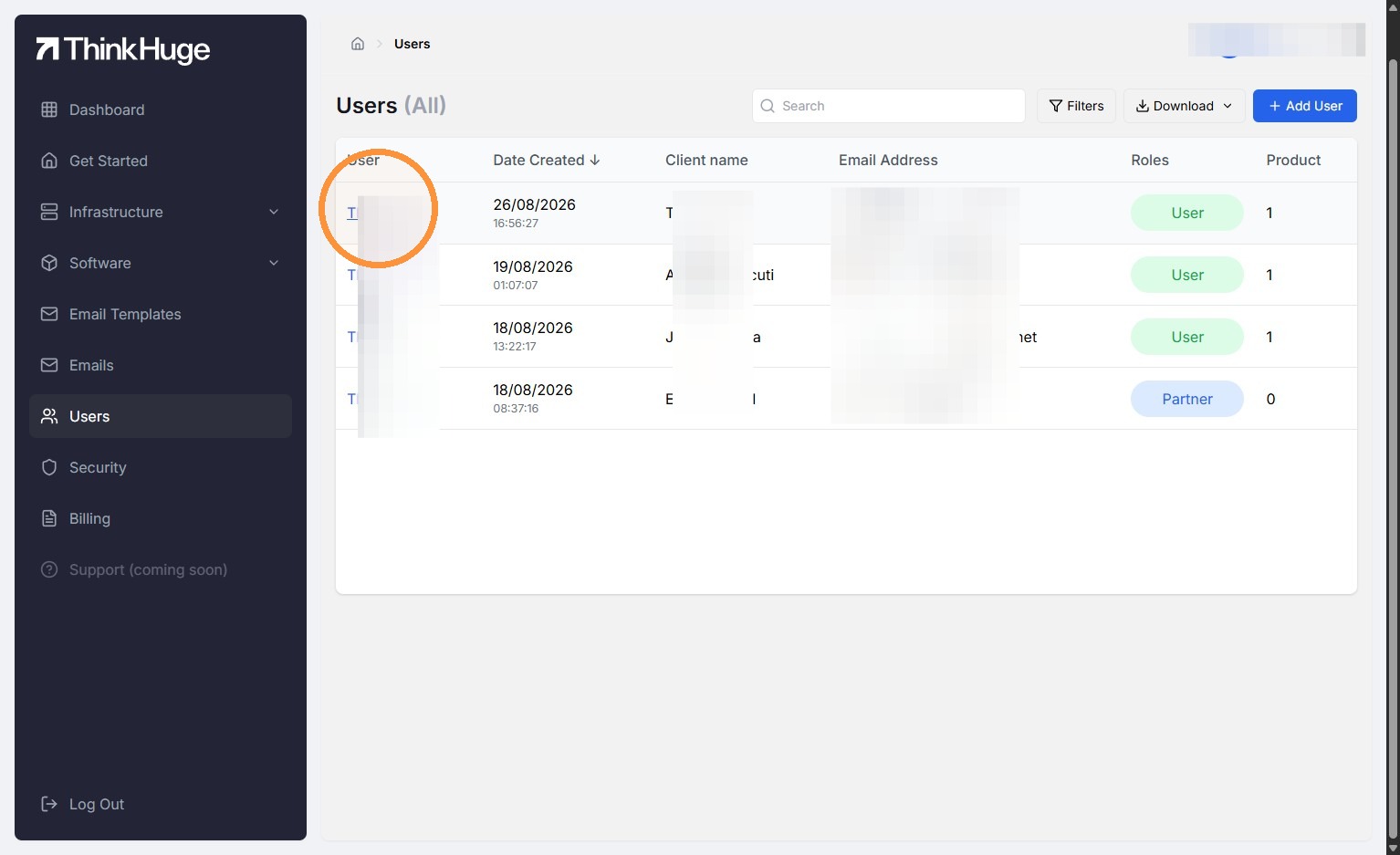
To view the details of the user, click on the username.
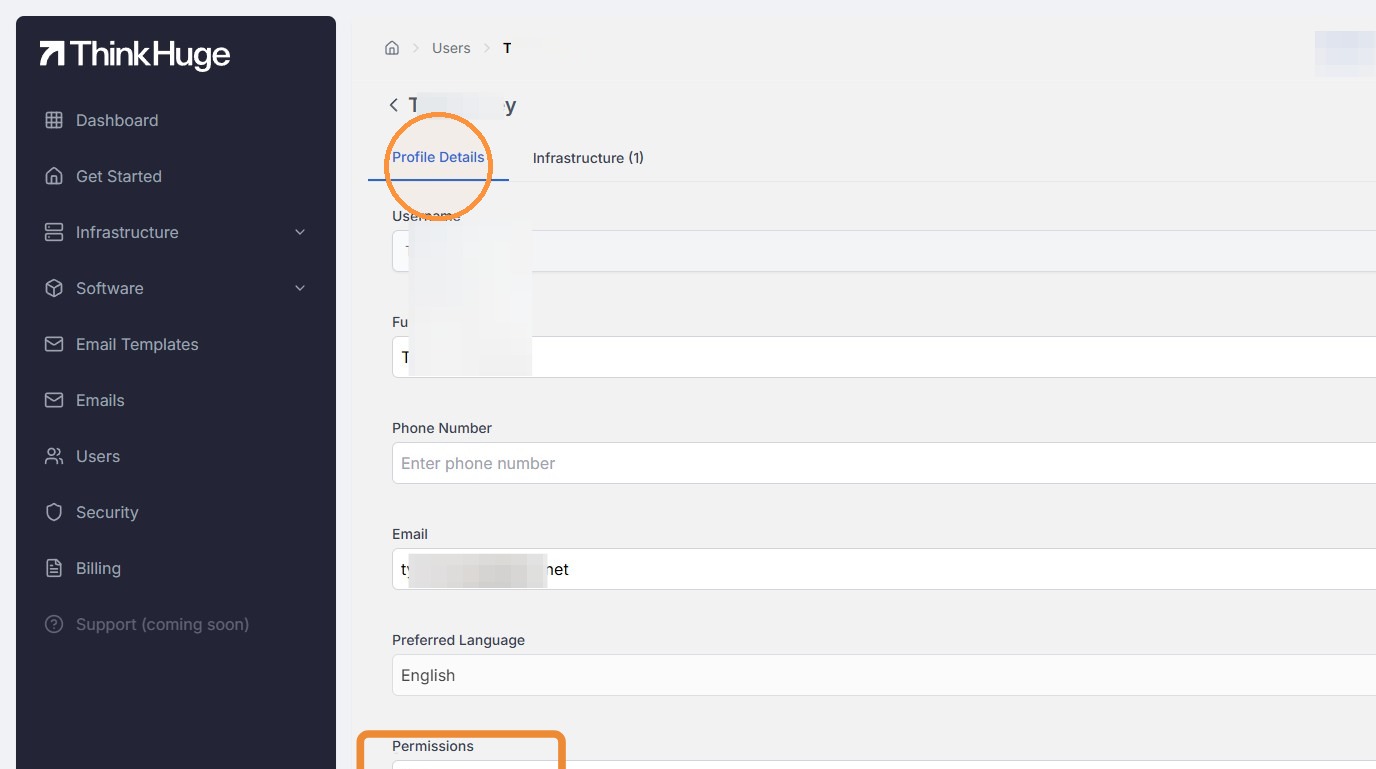
From here, you'd be able to view his profile details including username (which can't be changed by default), phone, email, language and permission.
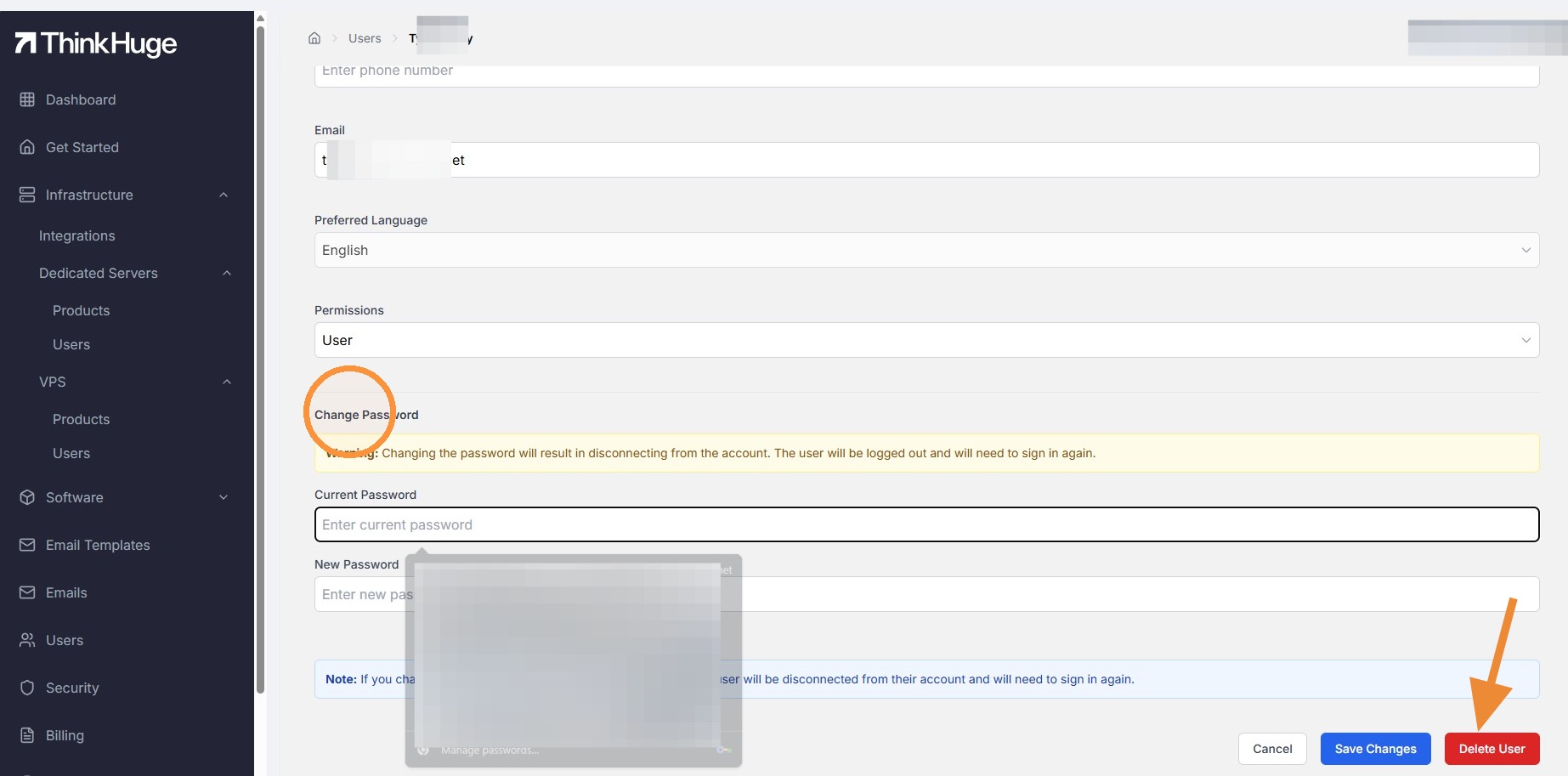
Down below, you should be able to set a new password as well or completely delete the user.
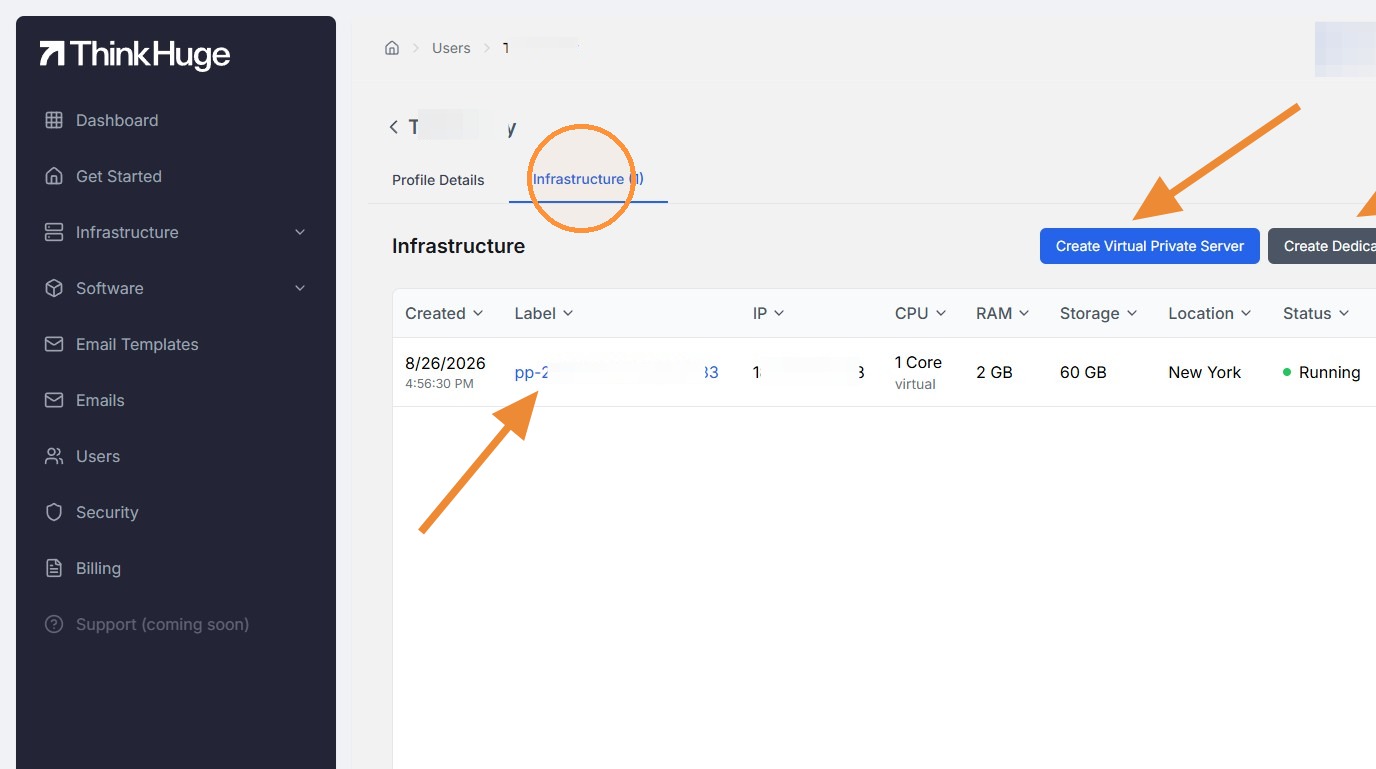
On the next tab, you can see the Infrastructure side showing the current subscription for this user. You can again view his current package by clicking on the label, this section also allows you to create a new vps or dedicated server if needed.
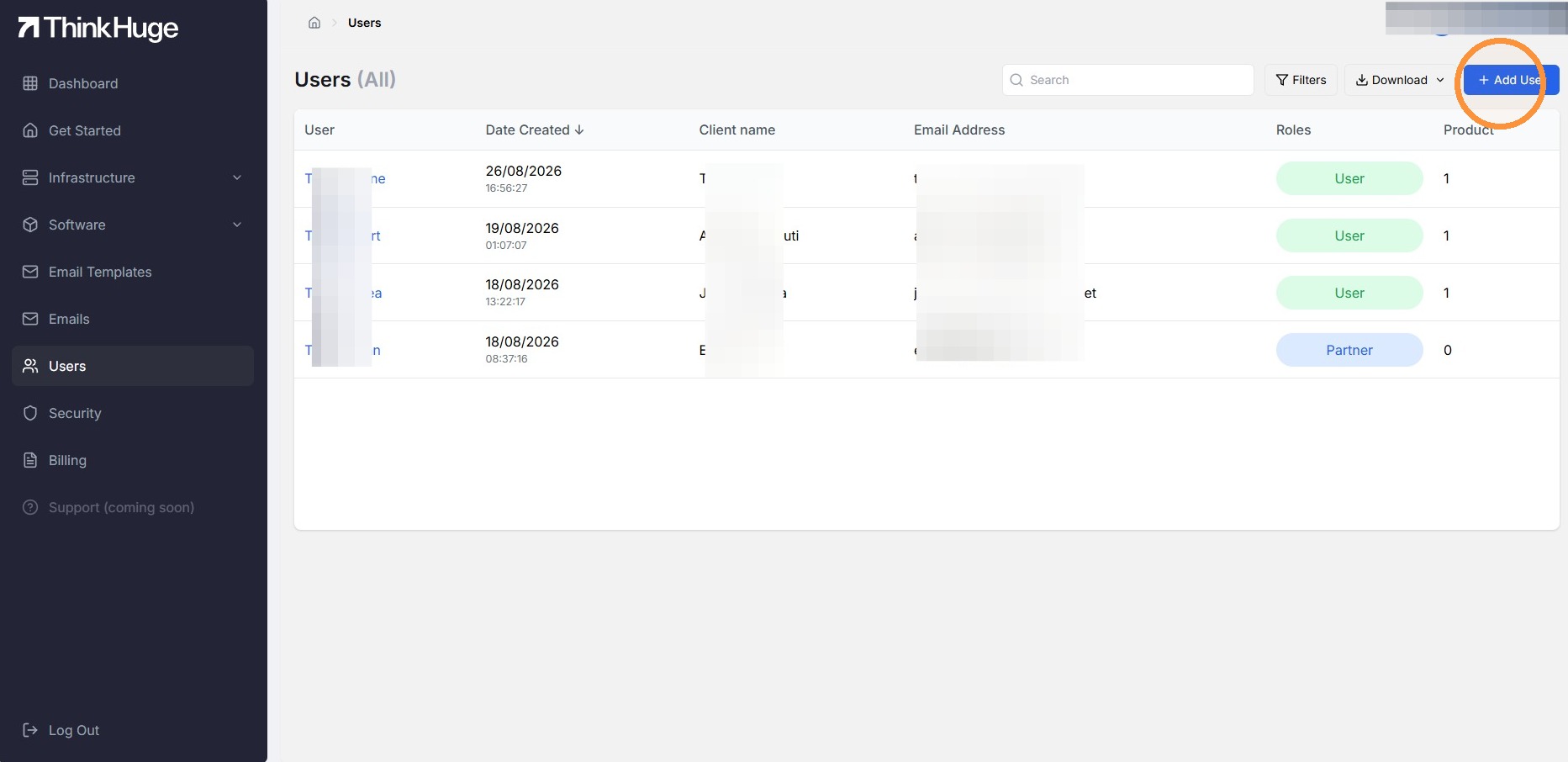
If a new user is needed, simply click on the ADD USER button
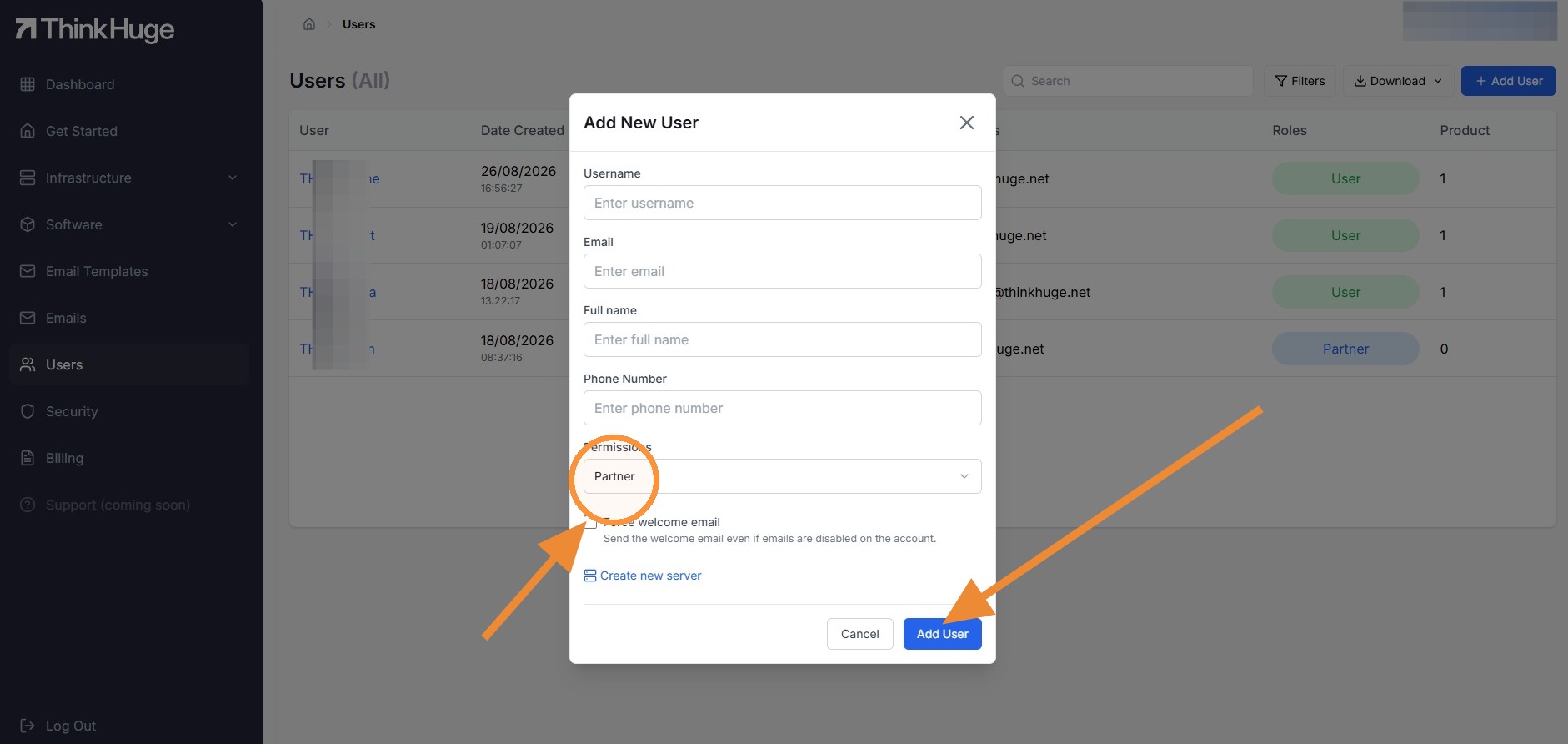
It will open the Permission list, fill out the information and decide on the permission to give this user, confirm sending the welcome email if needed then click Add User and you're all set.
The Users section provides a convenient way to keep track of who has access to your account and infrastructure. You can quickly view existing users, create new ones and even delete them whenever needed.
For any questions about user access, permissions or navigating the Partner Portal, our Support Team is available to assist 24/7.
Was this article helpful?
That’s Great!
Thank you for your feedback
Sorry! We couldn't be helpful
Thank you for your feedback
Feedback sent
We appreciate your effort and will try to fix the article