Securing your ThinkHuge User Account with Two-Factor Authentication (2FA) adds an extra layer of protection beyond your password. Even if your password is accidentally exposed or compromised, 2FA helps prevent unauthorized access by requiring an additional verification code when signing in.
This guide will walk you through the complete 2FA setup process, from enabling the feature and linking your authenticator app to verifying that everything is working correctly.
We strongly recommend completing the setup before using your partner account for any important account or business-related activities. Once 2FA is enabled, keep your recovery codes in a secure location and do not share them with anyone.
Follow the steps below to activate and verify Two-Factor Authentication on your account.
Step 1. Log in to your user account via: https://partners.thinkhuge.net
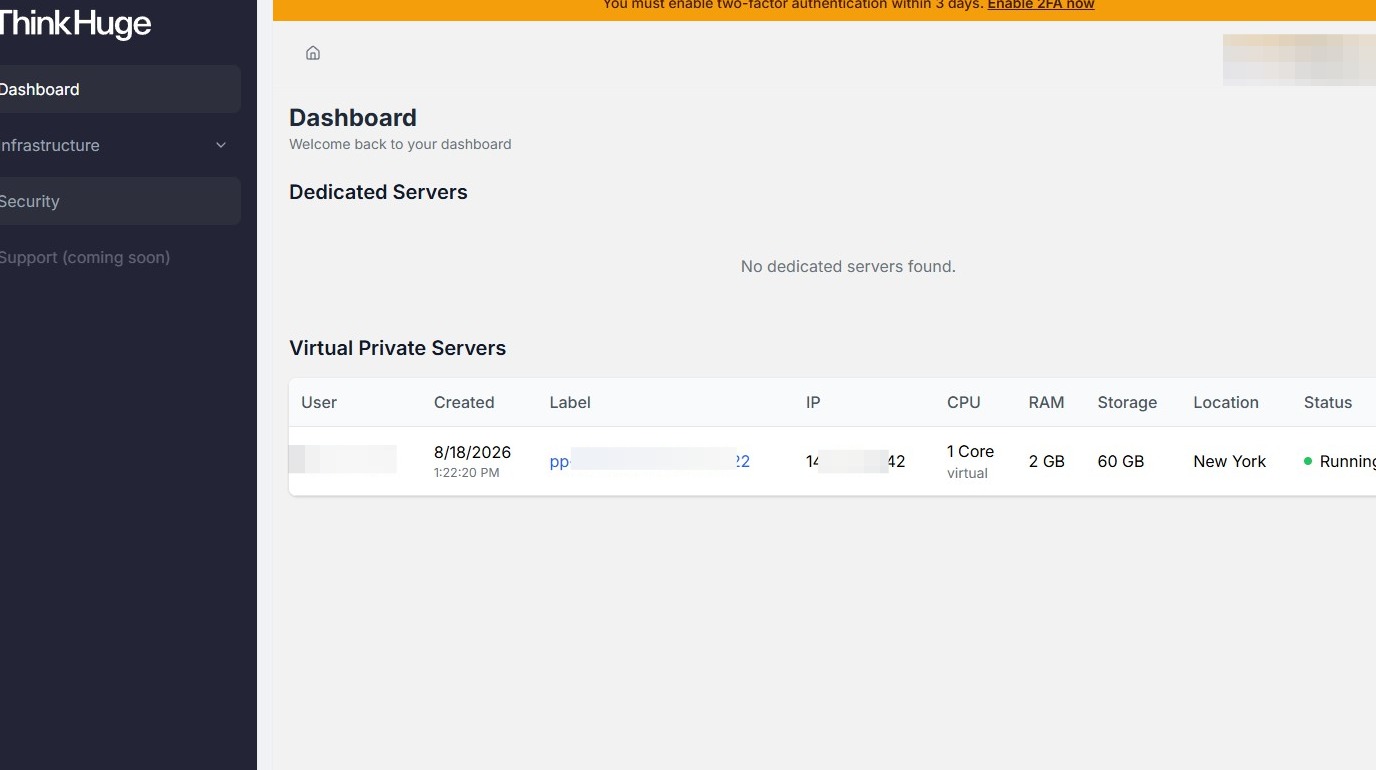
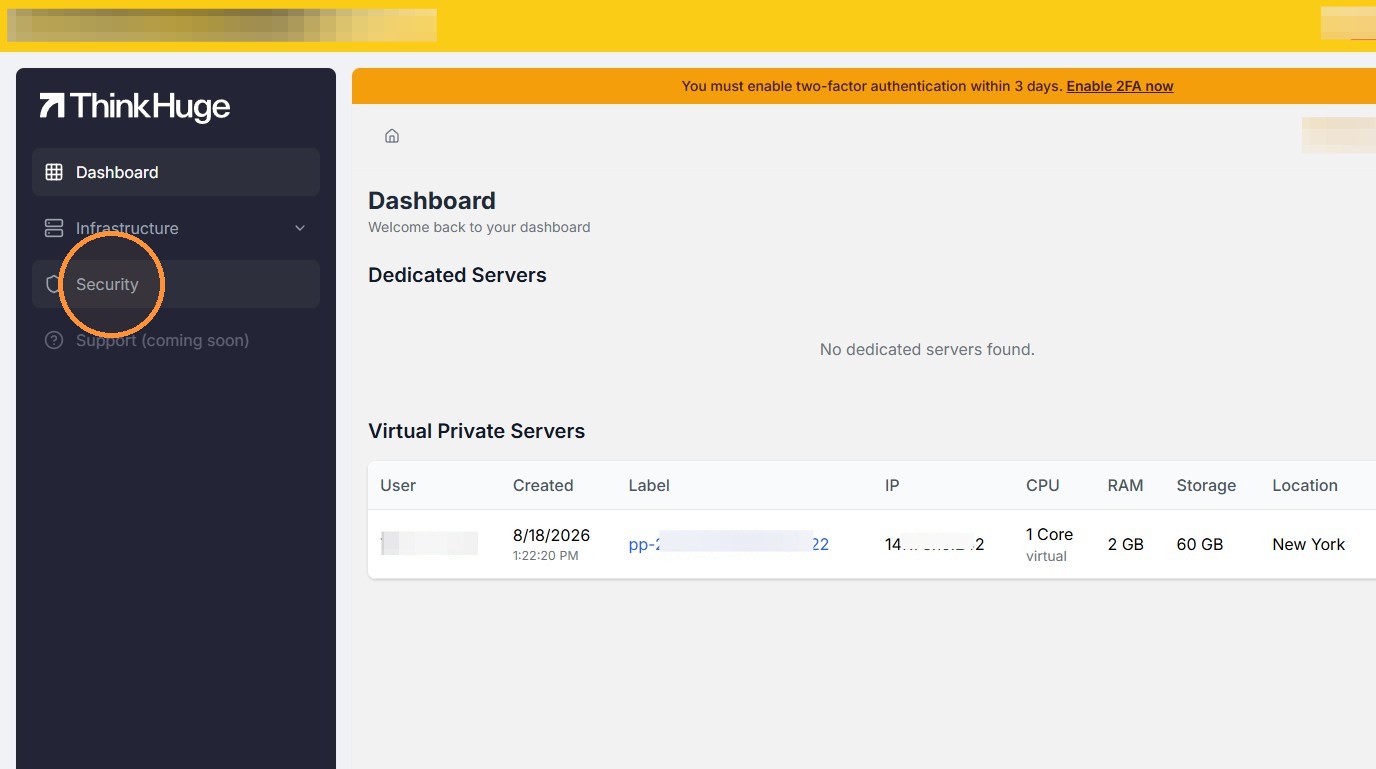
Step 2. Click "Security"
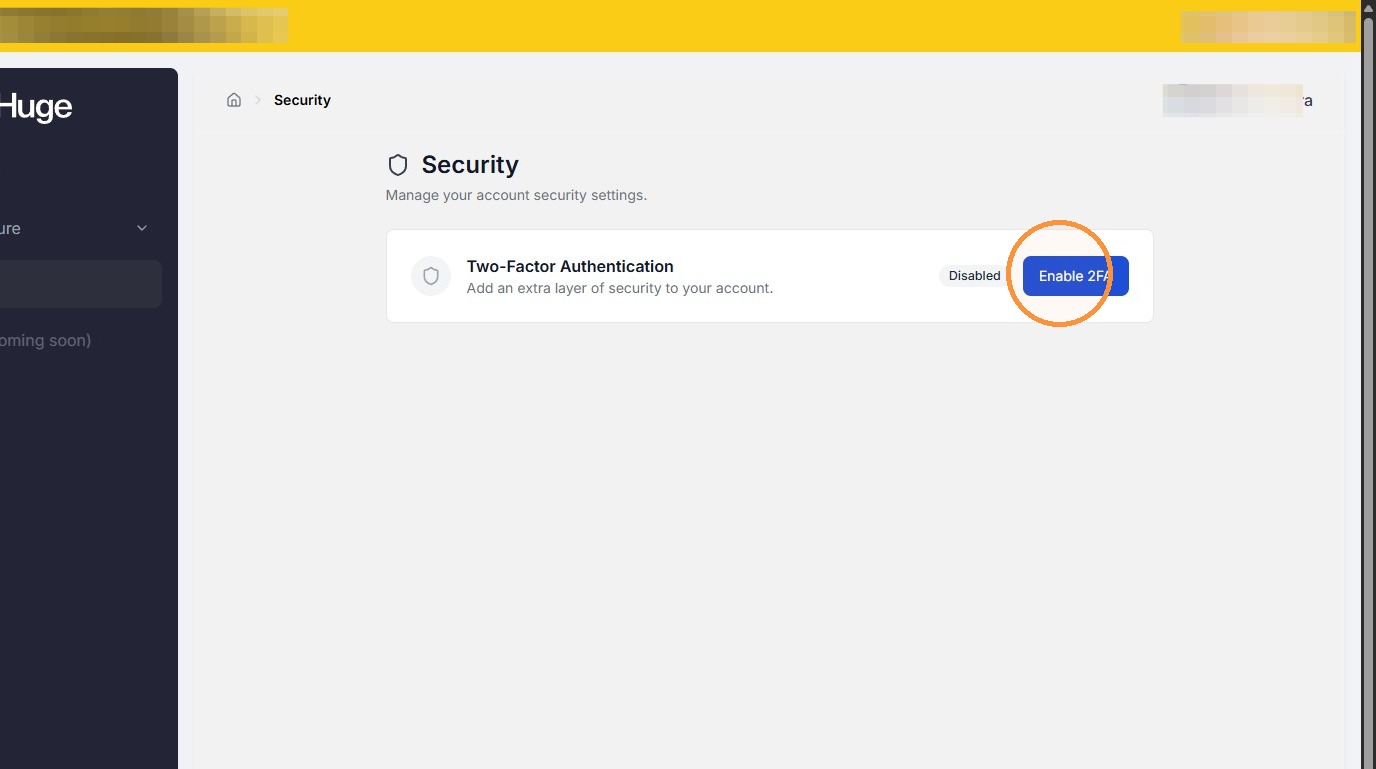
Step 3. Click "Enable 2FA"
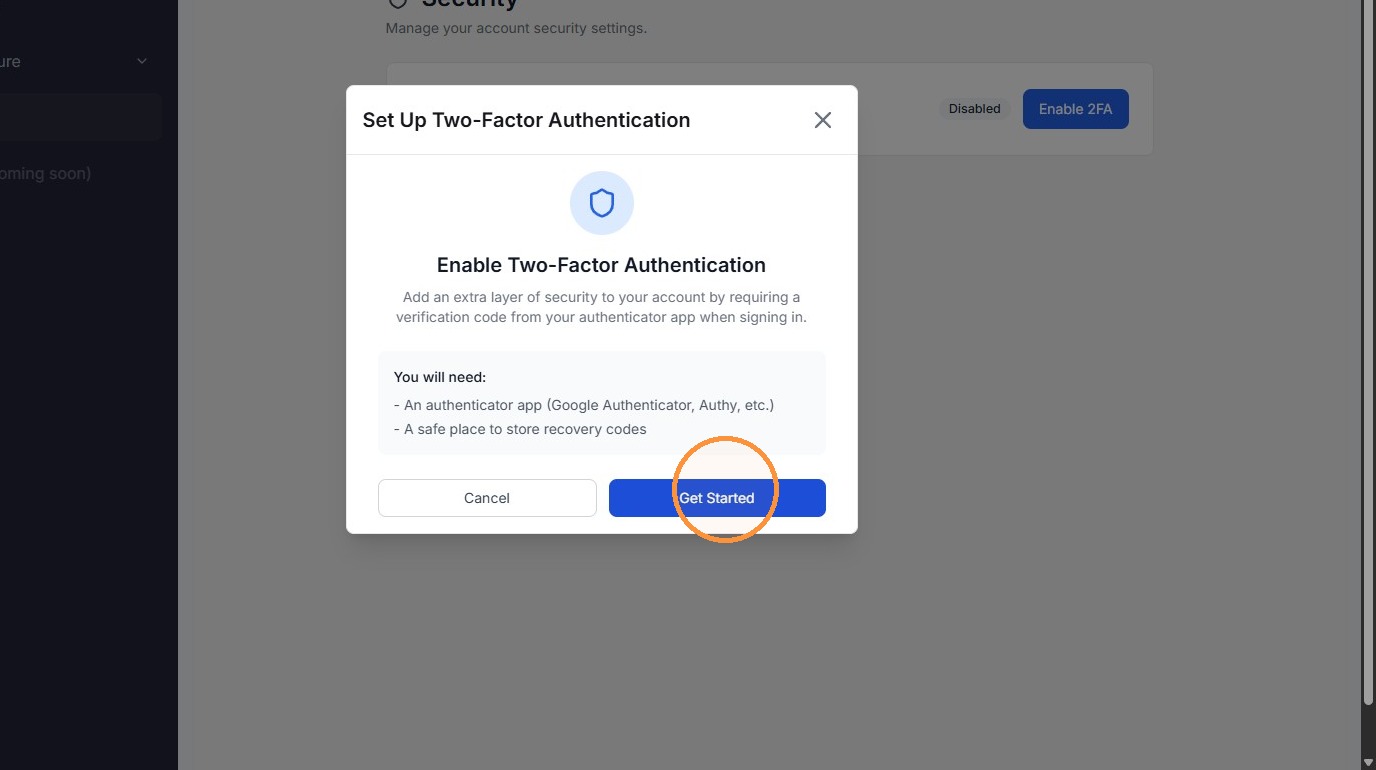
Step 4. Click "Get Started"
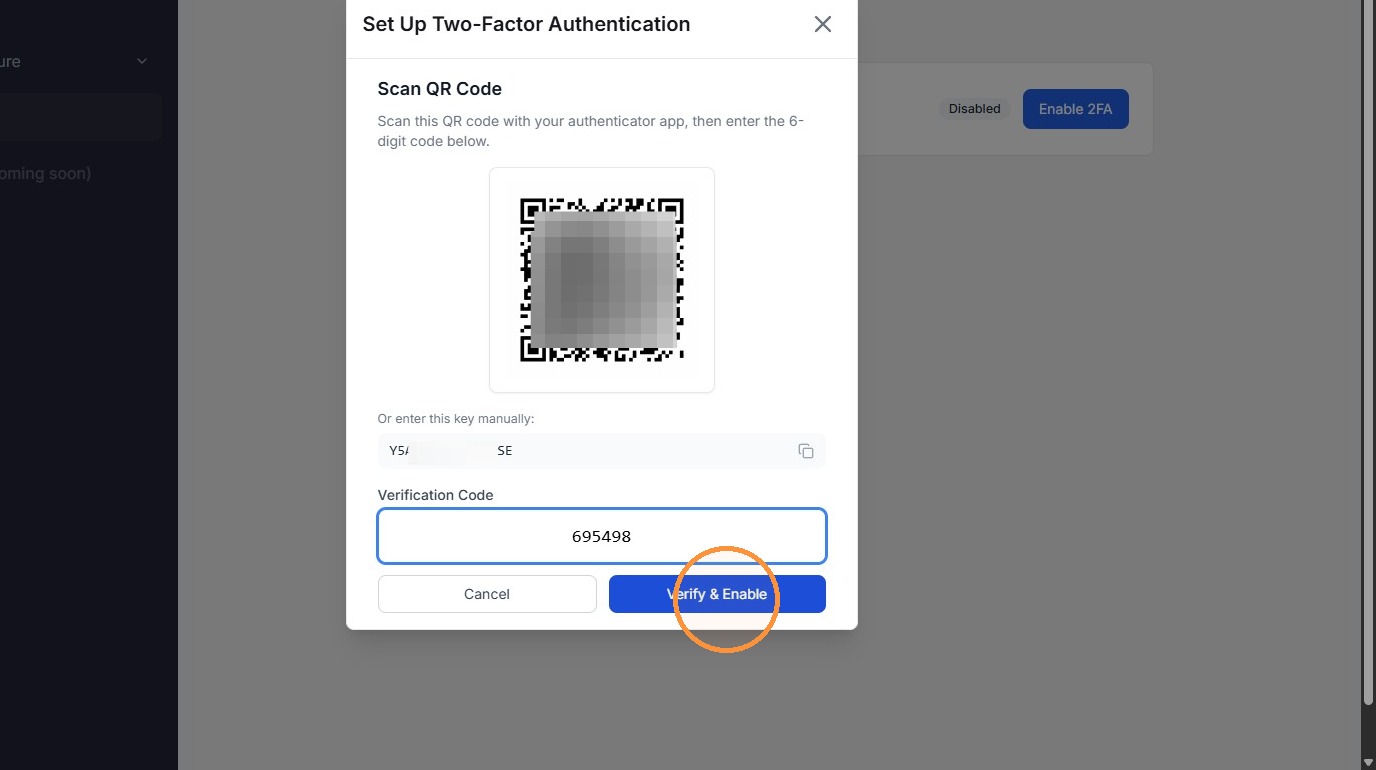
Step 5. Type the verification code from your authenticator then click "Verify & Enable"
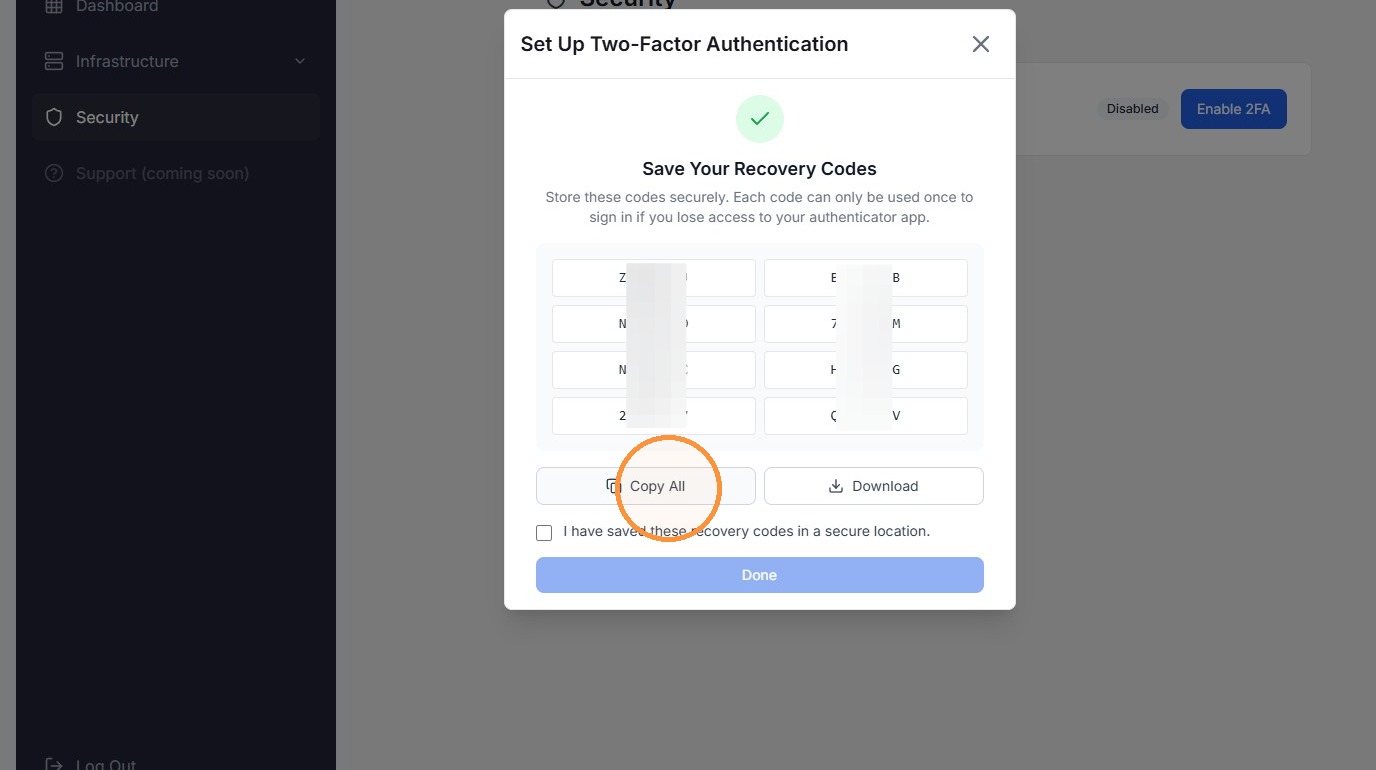
Step 6. It will show your recovery codes, click "Copy All"
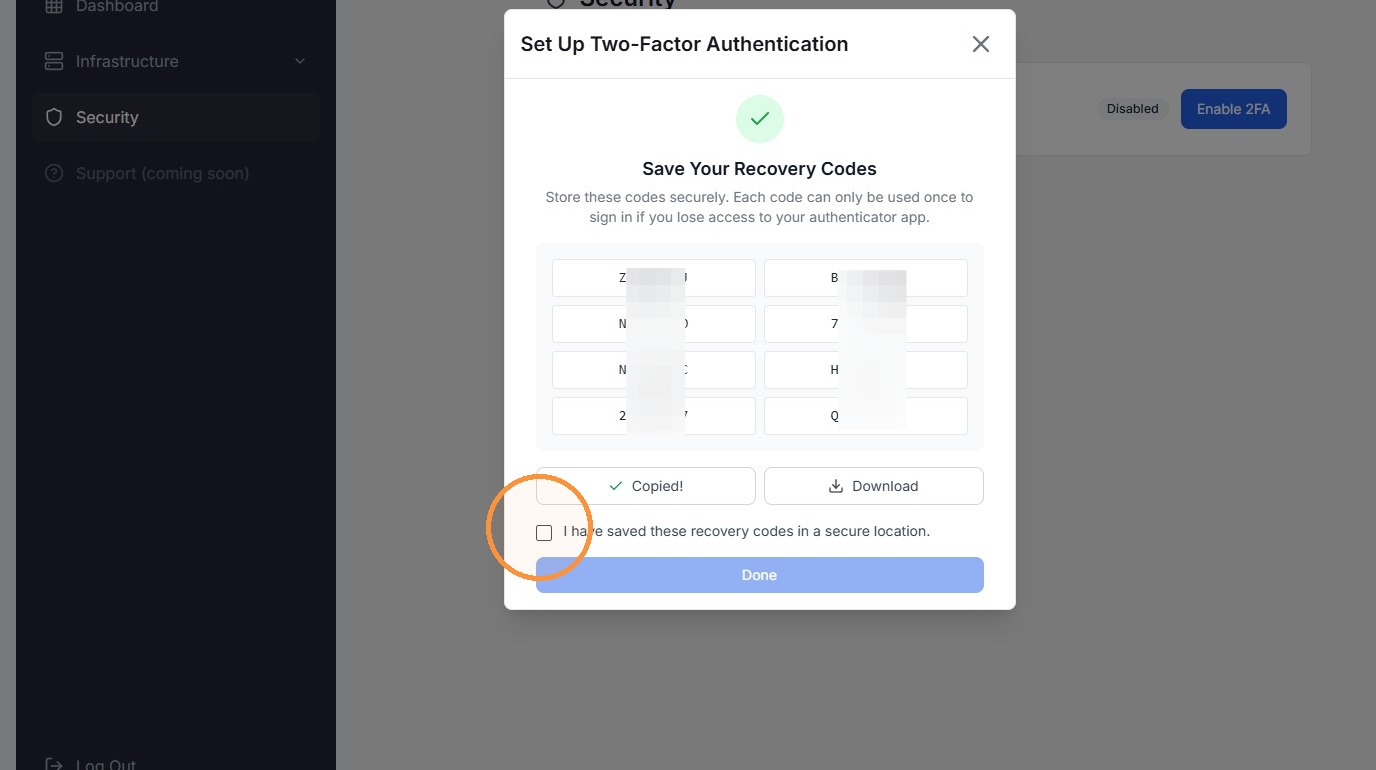
Step 7. Check the tickbox to confirm you have saved the codes, you can also download a copy
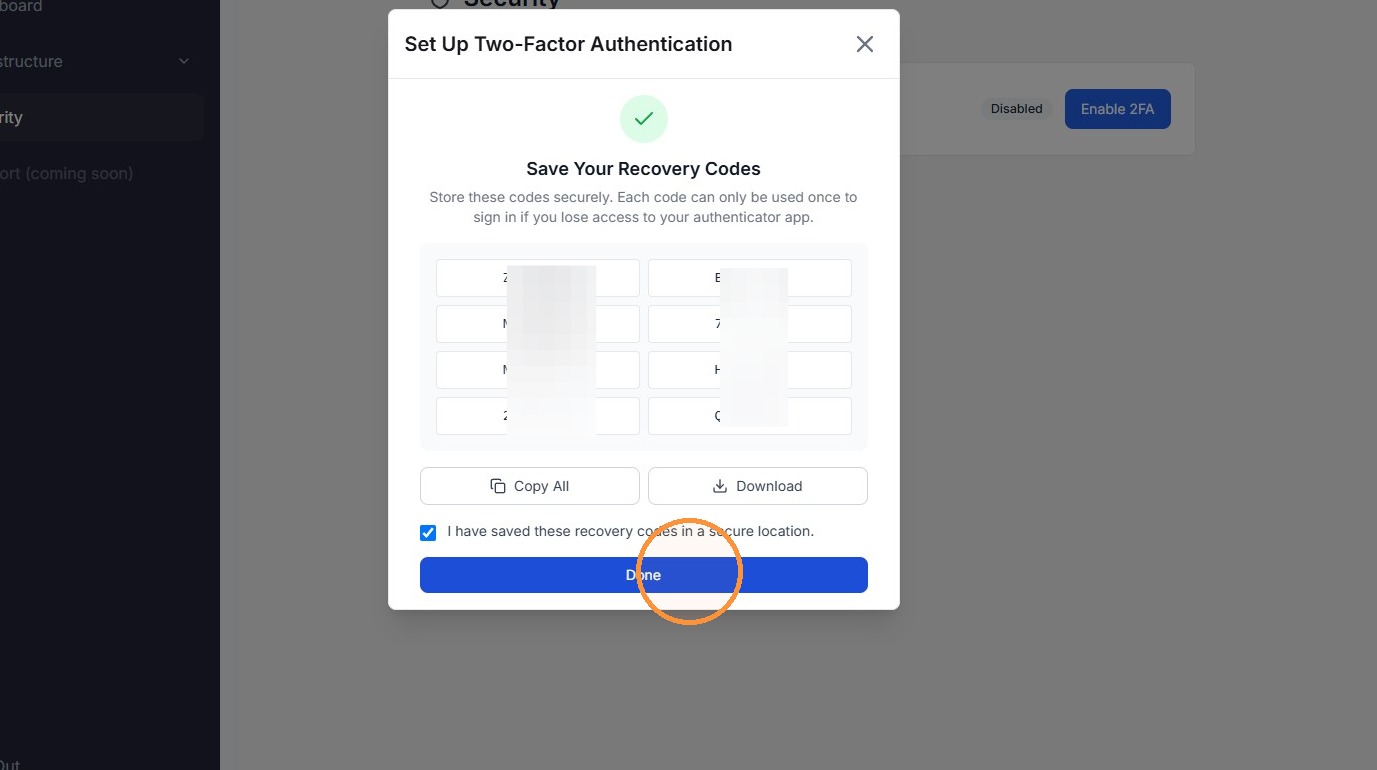
Step 8. Once all saved, click Done and you're all set.
Recovery codes act as a backup method for two-factor authentication. They allow you to regain access to your account when your primary 2FA method is unavailable. Store your recovery codes securely and make sure they are accessible when you need them.
Was this article helpful?
That’s Great!
Thank you for your feedback
Sorry! We couldn't be helpful
Thank you for your feedback
Feedback sent
We appreciate your effort and will try to fix the article