The MetaTrader AutoStart tool configures two things for the account you specify: Windows AutoLogon (the account signs in automatically on startup, without anyone entering the password) and automatic startup of your MetaTrader 4 and/or MetaTrader 5 terminal(s) right after that sign-in. This means your trading platform keeps running on its own after every restart — including after an unexpected failure or reset — with no one needing to be at the keyboard. On each run, the tool automatically detects the MetaTrader installations present on the computer.
This guide covers two things:
- How to enable / configure AutoStart for your account
- How to disable AutoStart if you no longer want it
Open the MetaTrader AutoStart Setup tool
You'll see the window below. Under Target User, your trading account username (for example, trader) is already filled in. The list under Select MetaTrader Terminals to Auto-Start shows every MetaTrader 4 / MetaTrader 5 installation the tool found on the computer — these may belong to different brokers or platforms, so your list may look different from the example below. Tick the box next to each terminal you want to start automatically, and leave the others unticked.
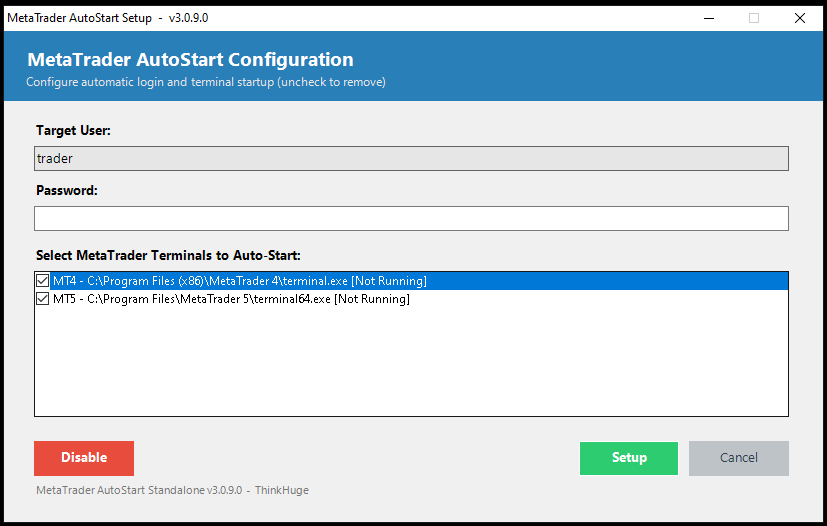
Enter your password and click "Setup"
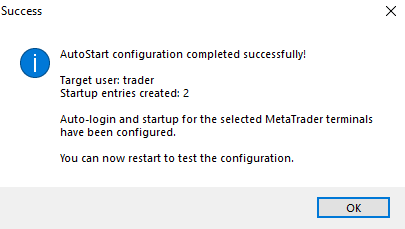
Click into the Password field and type the password you use to log in to this Windows account. This is required to set up Windows AutoLogon for the account, so it can sign in automatically on every restart and start the terminal(s). Then click the green Setup button. A confirmation window like the one below will then appear, showing your username and the number of startup entries created — click OK to close it.
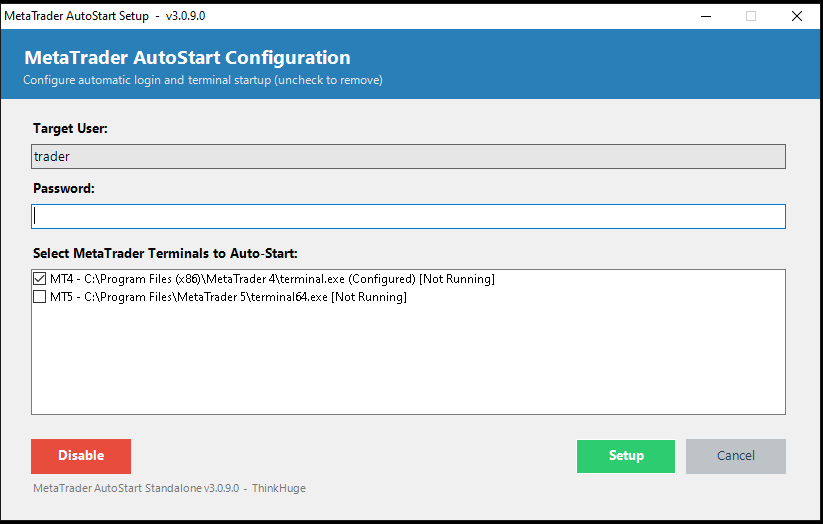
Reopen the tool anytime to review or change your selection
After the success message closes, you can reopen the AutoStart Setup tool at any time to see your current configuration. Terminals that are already set up will show as (Configured) in the list, as seen below with MT4.
If you no longer want this account to sign in automatically and start your MetaTrader terminal(s), you can turn this feature off at any time using the same tool.
Click "Disable"
Open the AutoStart Setup tool and click the red Disable button in the bottom-left corner.
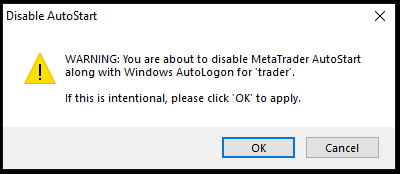
Confirm the success message
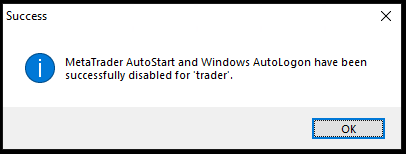
Once confirmed, a final message will appear letting you know that MetaTrader AutoStart and Windows AutoLogon have both been successfully disabled for your account. Click OK to close.
Quick Reference
| To do this... | Do this |
|---|---|
| Sign in automatically and start MetaTrader terminal(s) after every restart | Enable AutoStart (Part 1) and tick the terminal(s) you want from the detected list |
| Stop a terminal from auto-starting, but keep AutoStart on | Untick that terminal's box and click Setup again |
| Turn off automatic sign-in (AutoLogon) and AutoStart completely | Click Disable (Part 2) and confirm |
Was this article helpful?
That’s Great!
Thank you for your feedback
Sorry! We couldn't be helpful
Thank you for your feedback
Feedback sent
We appreciate your effort and will try to fix the article