Accessing your Windows VPS from a Mac is simple using a Remote Desktop (for existing RDP users) or Windows App (new) application. This guide walks you through the steps to connect to your VPS using your Mac via Windows App, allowing you to manage your applications, trading platforms, files, and other VPS resources remotely.
Before getting started, make sure you have your VPS IP address, username, and password ready, and that you have a stable internet connection.
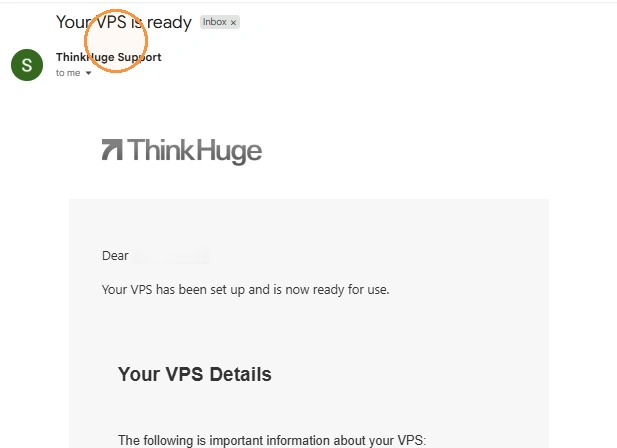
Step 1. Check your email from ThinkHuge Support with subject line will be: Your VPS is ready, it contains your VPS access information and some guides on how to get started.
There is a 15-minute provisioning period for all VPS so give it some time before you start accessing the server.
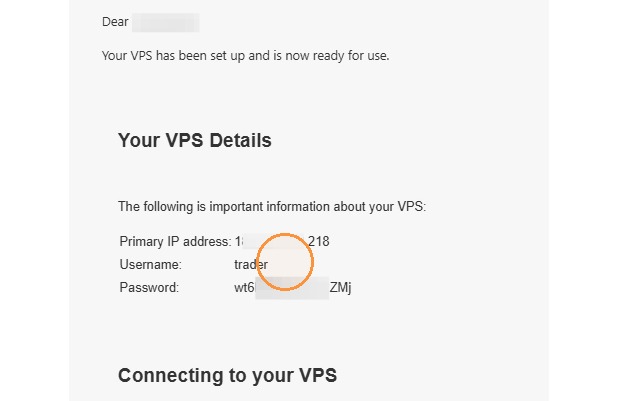
Step 2. Take note of the Main IP and Port, Username and Password
Step 3. Open App Store and search for Windows App
NOTE: If you have an existing RDP or Windows App already, go to Step 7 directly
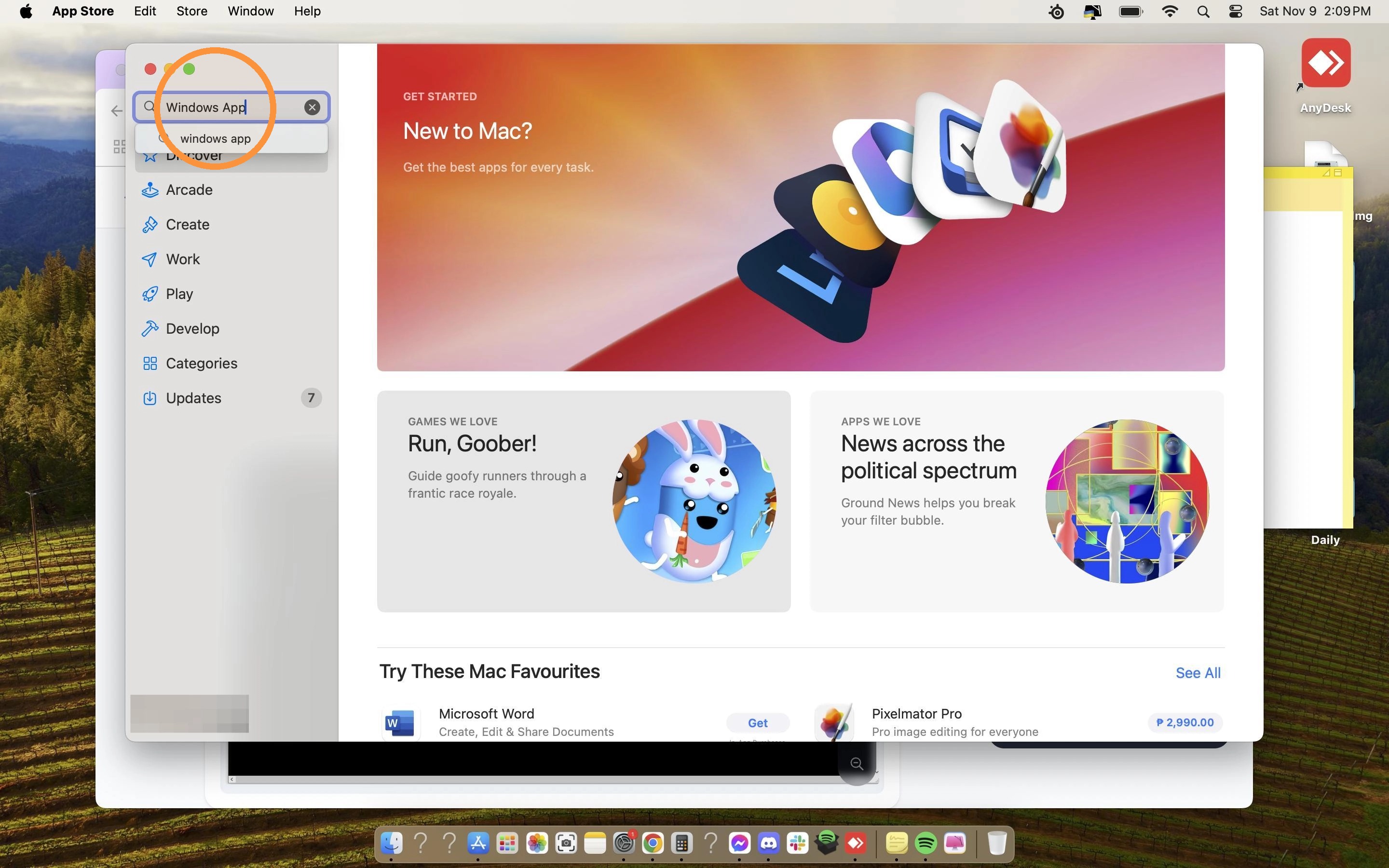
Step 4. Click Get, then Install and then Open
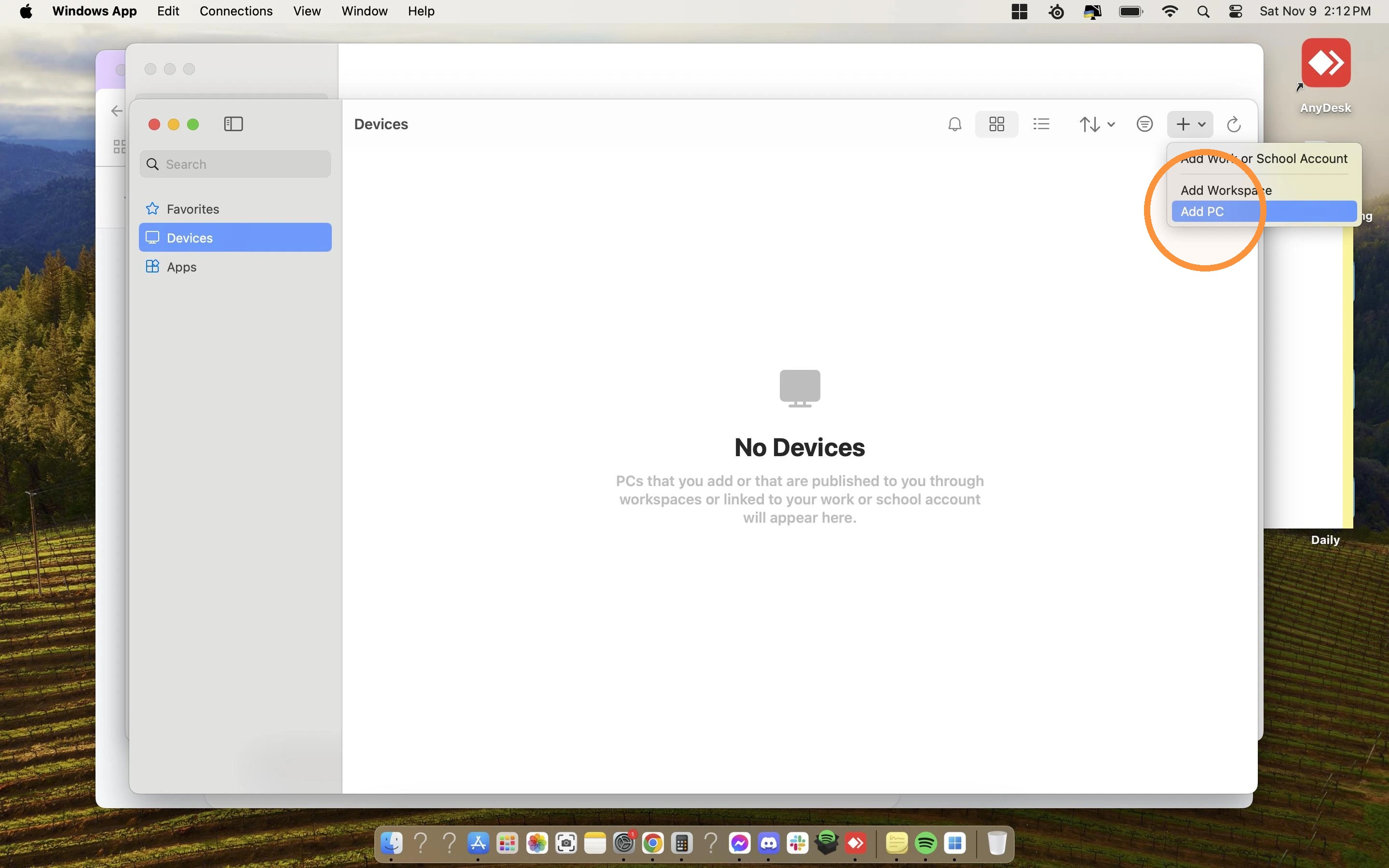
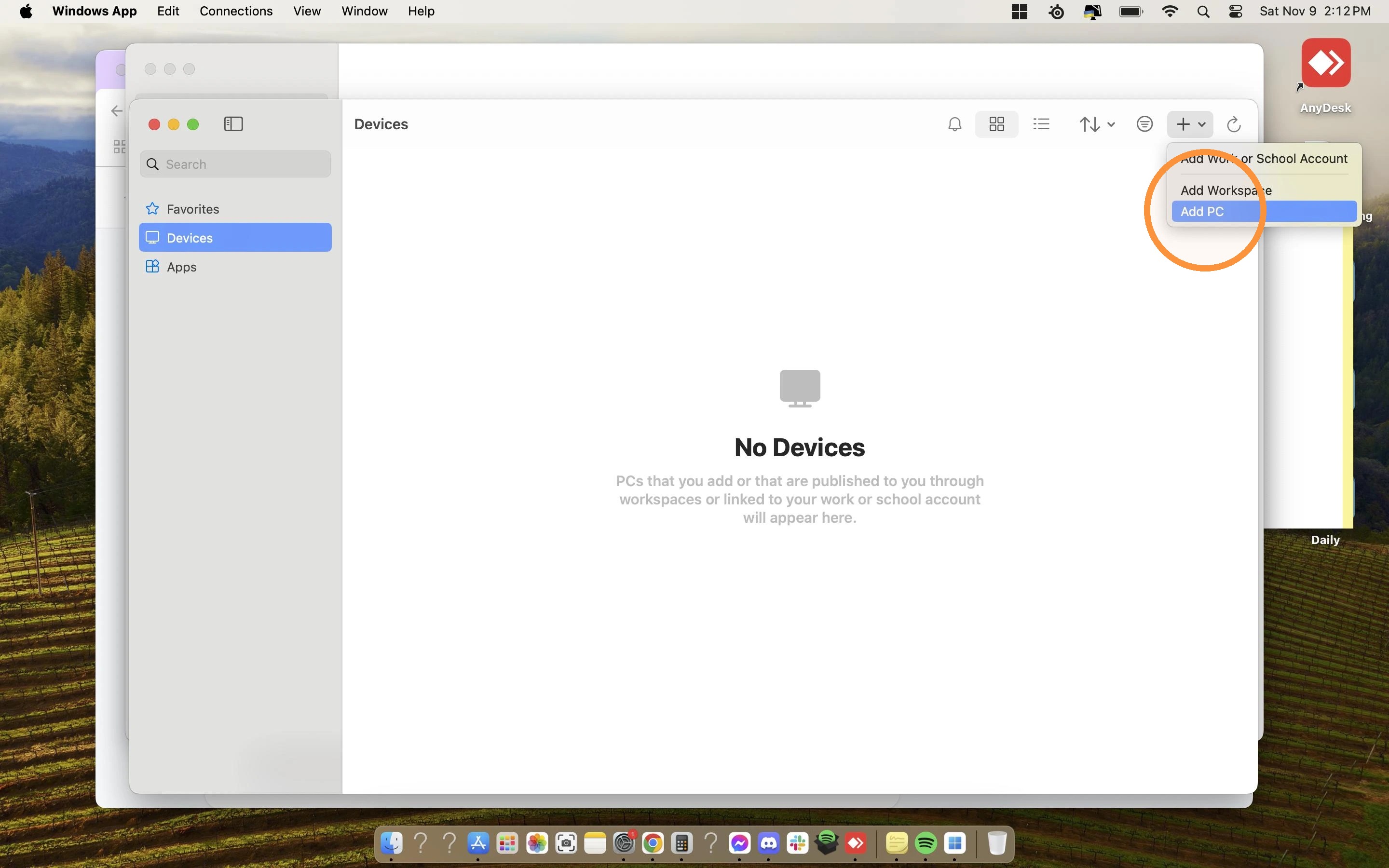
Step 5. Click + drop down then Add PC
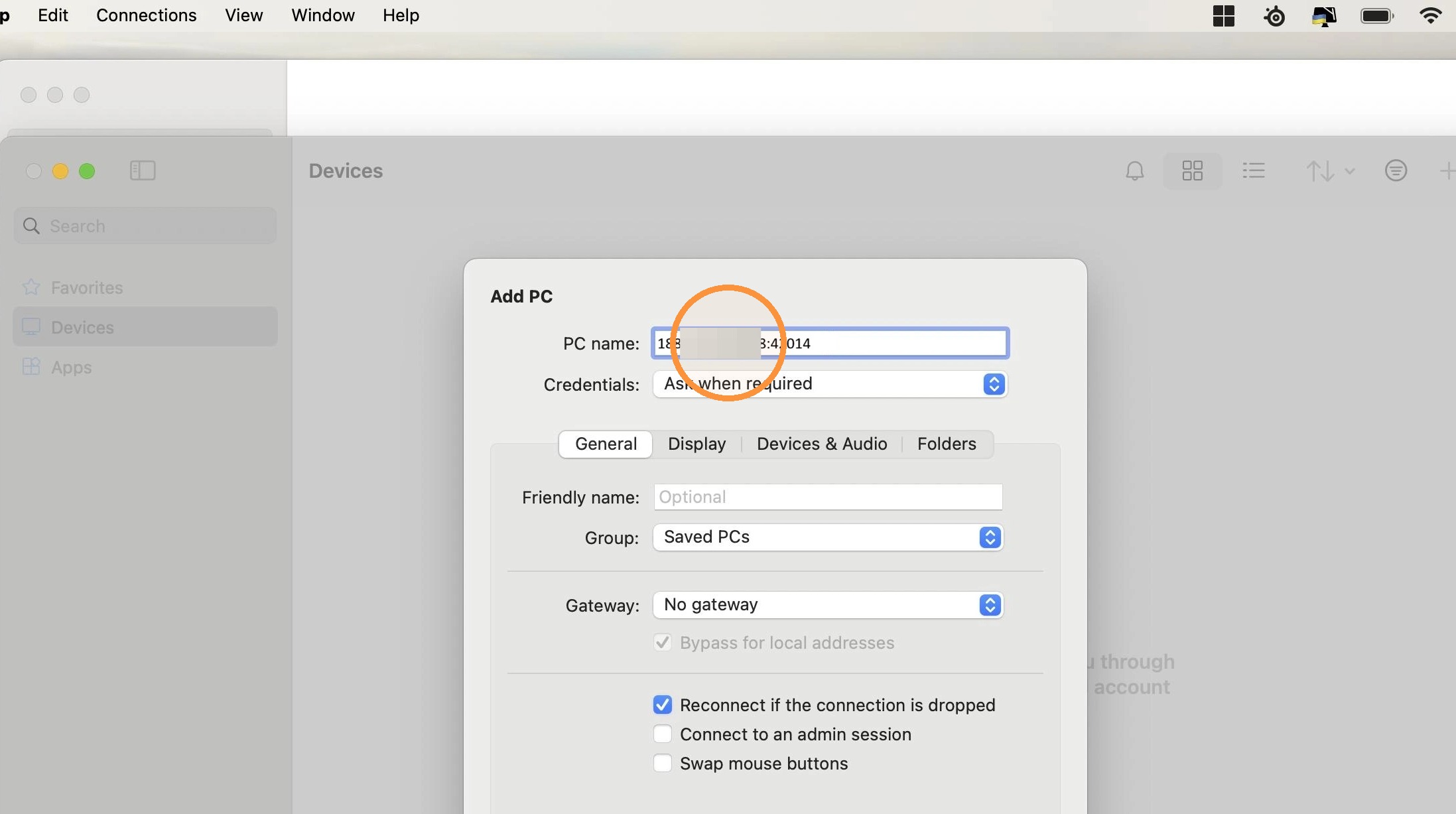
Step 6. Add your VPS IP:Port under the PC Name field
Click on Credentials drop down and add user account
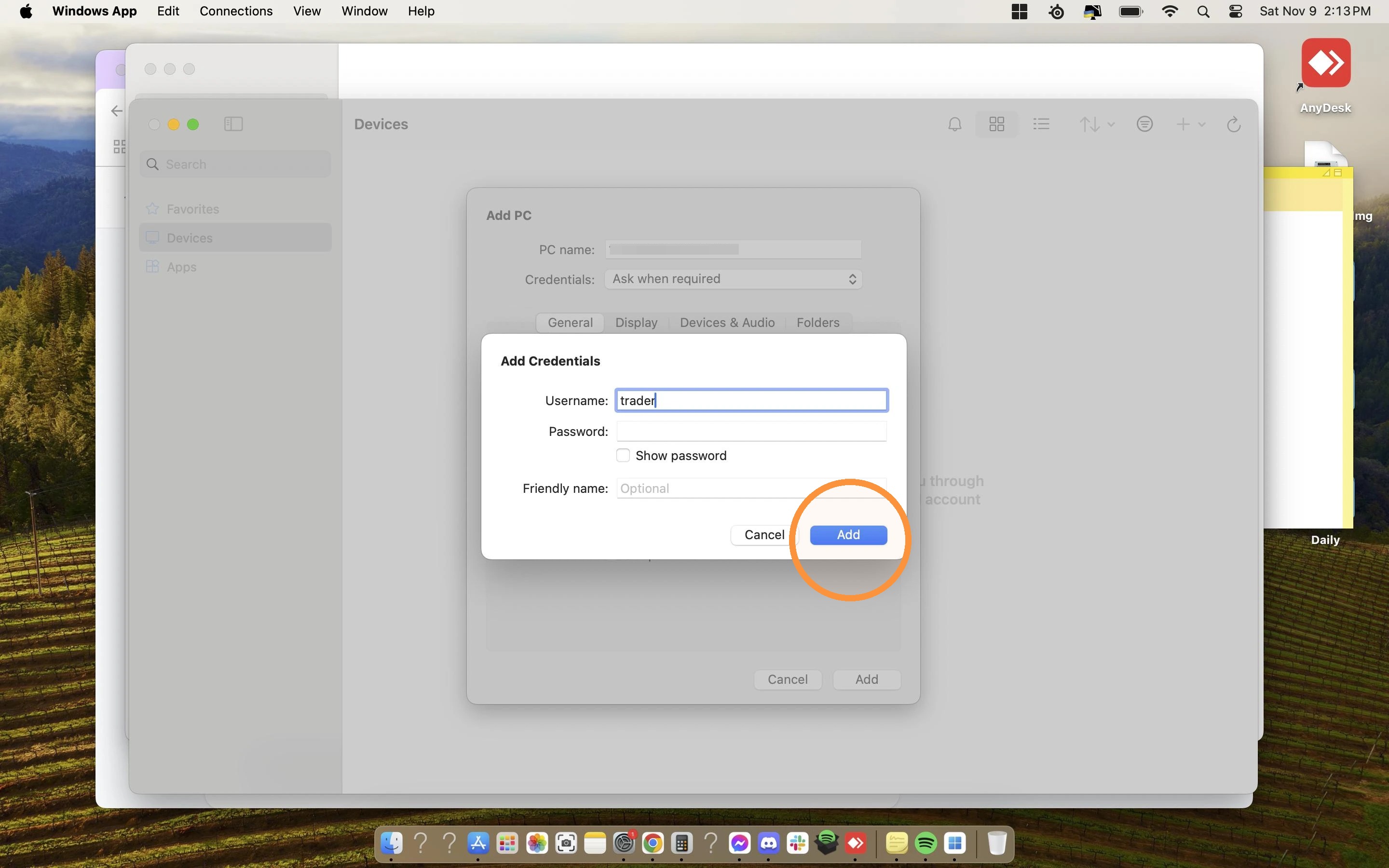
Step 7. Key in your username and password then click Add
You optionally can add a Friendly name for your VPS as well
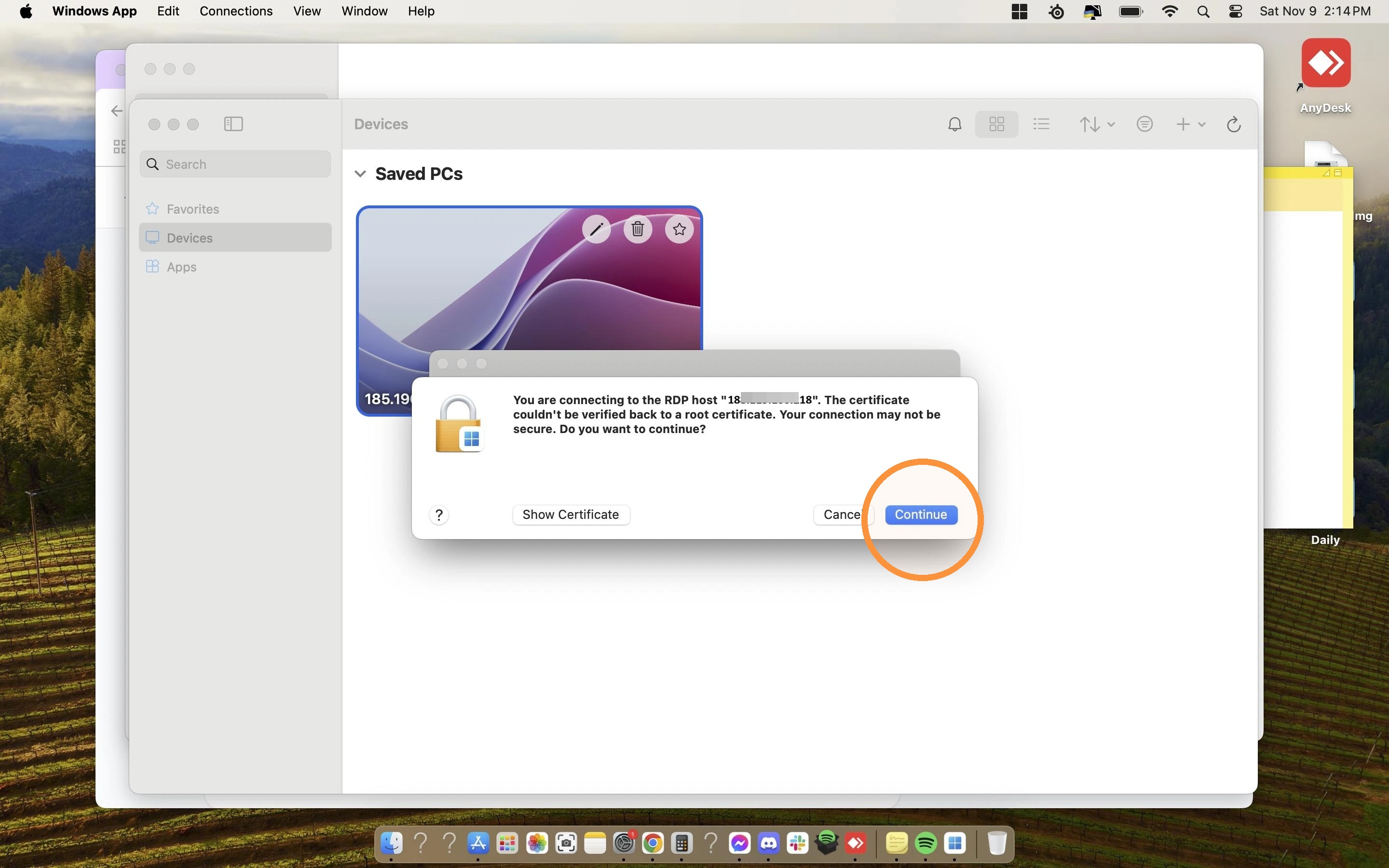
Step 7. Once added, you will see a VPS shortcut in the list, just double click it to open
When logging in, it will prompt you to Accept All Certifications and click on Continue
Step 8. Once successfully logged in, you'd be able to see your desktop and start using it.

Once connected, you can use your VPS from your Mac just as you would from a Windows computer. If you experience any issues connecting, double-check your VPS credentials and IP address, then make sure your VPS is online and accessible.
If the issue persists, contact our Support Team with the connection details and any error message you receive so we can assist you further.
Was this article helpful?
That’s Great!
Thank you for your feedback
Sorry! We couldn't be helpful
Thank you for your feedback
Feedback sent
We appreciate your effort and will try to fix the article