Connecting to your Windows VPS from a Windows PC is quick and straightforward using the built-in Remote Desktop Connection application. This guide walks you through the steps to establish a remote connection to your VPS so you can access and manage your applications, trading platforms, files, and other resources.
Before getting started, make sure you have your VPS IP address, username, and password ready, and that you have a stable internet connection.
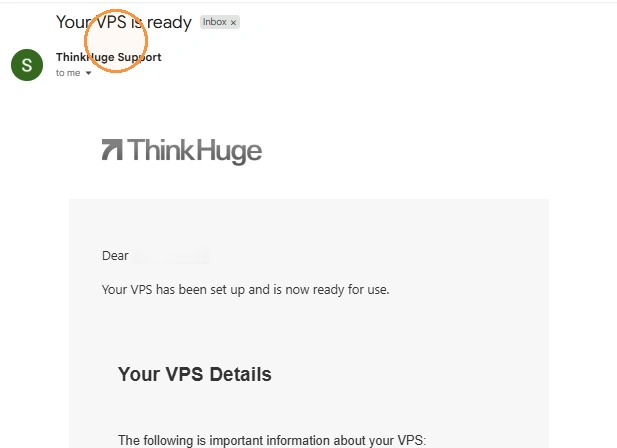
Step 1. Check your email from ThinkHuge Support with subject line will be: Your VPS is ready, it contains your VPS access information and some guides on how to get started.
There is a 15-minute provisioning period for all VPS so give it some time before you start accessing the server.
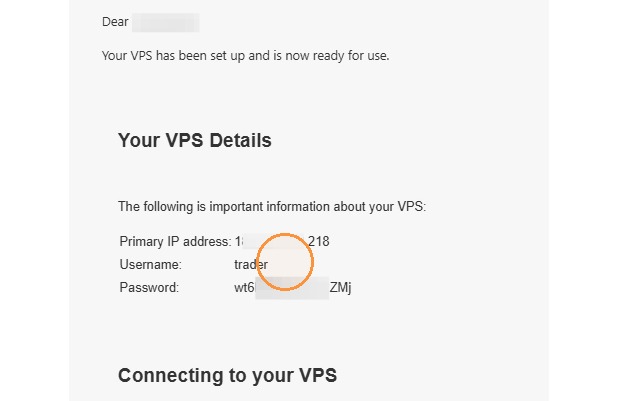
Step 2. Take note of the Main IP and Port, Username and Password
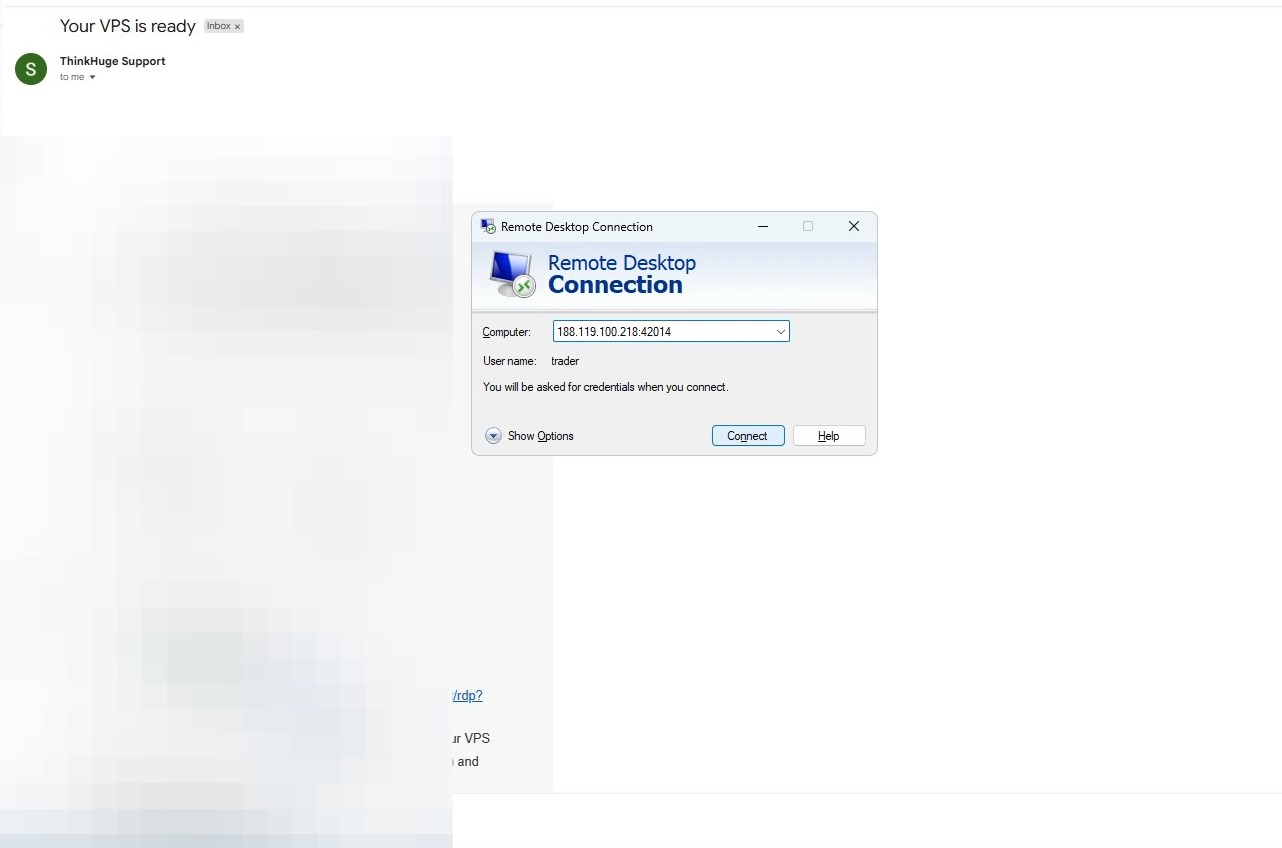
Step 3. Go to START and open Remote Desktop Connection
Type the Main IP and Port then Connect
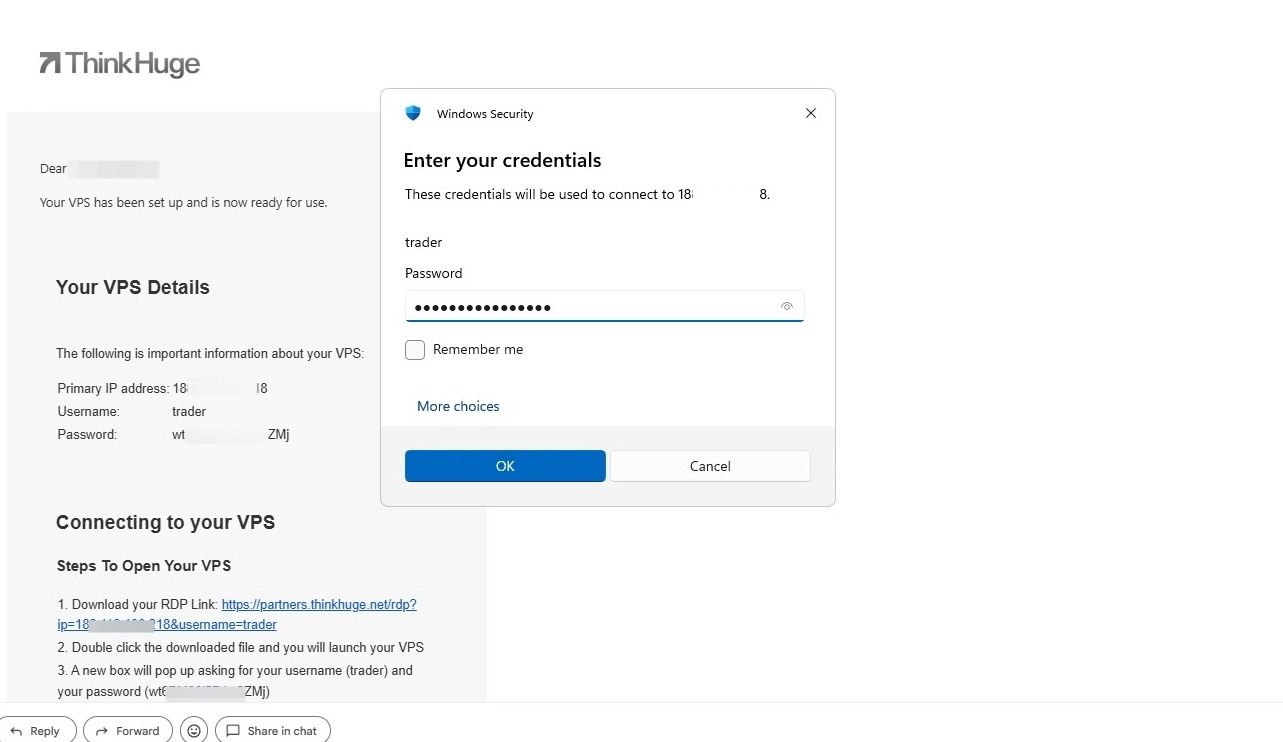
Step 4. Type the username and password you received from the welcome email
Step 5. There will be a prompt about the certificate which you can safely ignore and click Yes
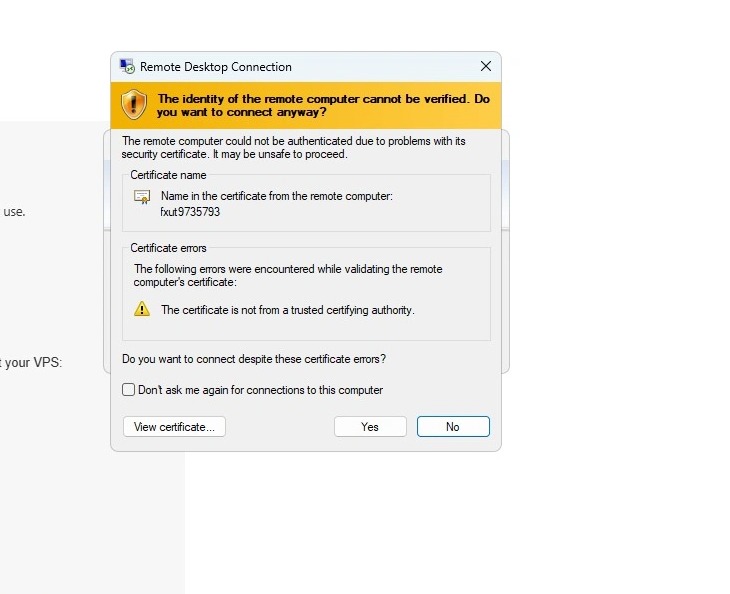
Step 6. Once successfully logged in, you'd be able to see your desktop and start using it.
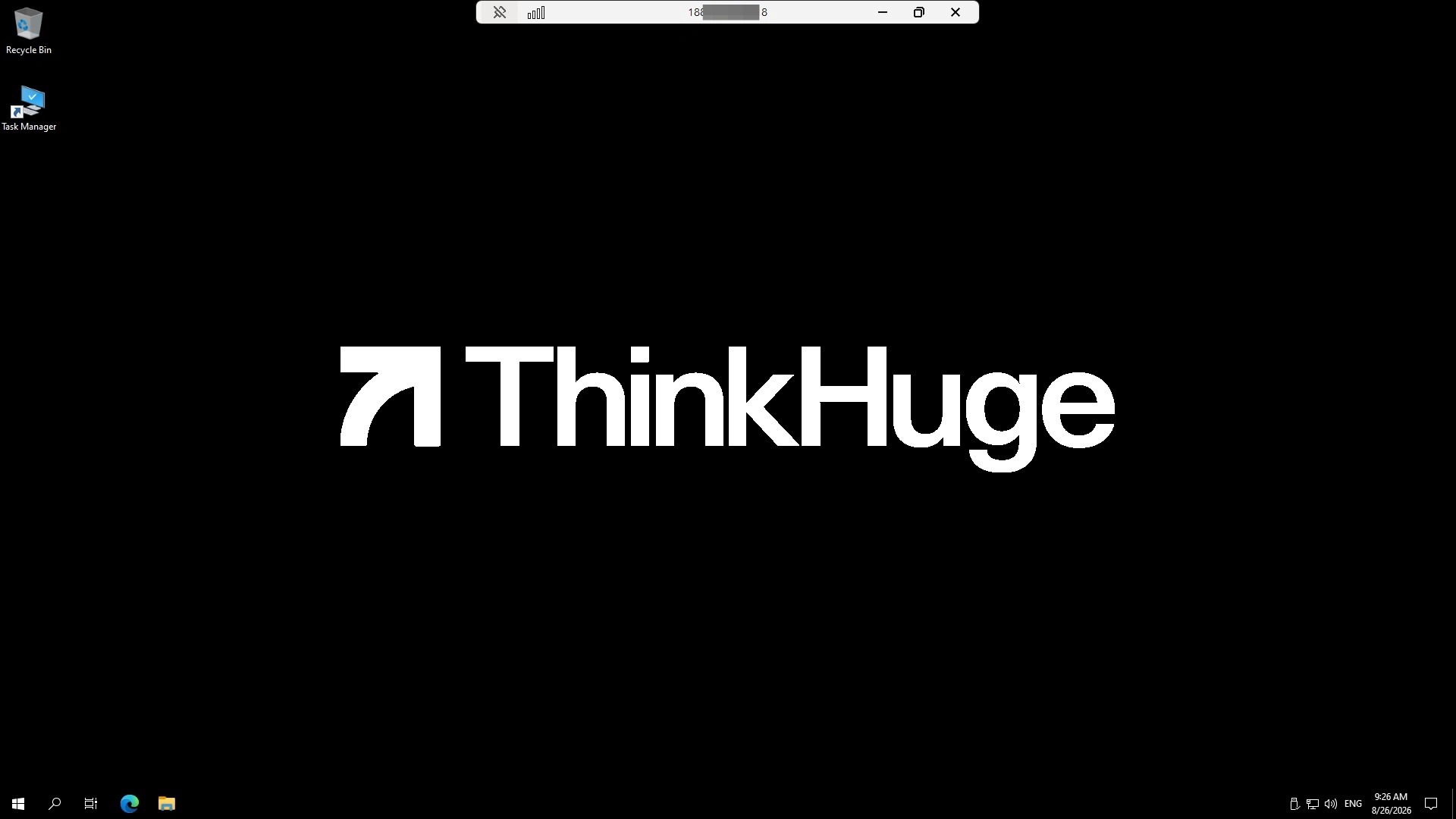
Once the connection is established, you can manage your VPS remotely as if you were using it directly. If you’re still unable to connect, contact our Support Team and provide the error message or screenshot you’re seeing so we can help troubleshoot the issue.
Was this article helpful?
That’s Great!
Thank you for your feedback
Sorry! We couldn't be helpful
Thank you for your feedback
Feedback sent
We appreciate your effort and will try to fix the article