You can access and manage your Windows VPS directly from an Android or IOS device using a Windows App application. This is useful when you’re away from your computer and need to quickly check your VPS, monitor applications, or perform basic tasks remotely.
This guide walks you through the steps to set up a Remote Desktop connection on your device and log in to your ThinkHuge VPS using your VPS IP address and credentials.
Before you start: Make sure you have your VPS IP address, username, and password available. You’ll also need a stable internet connection on your Android or Apple device.
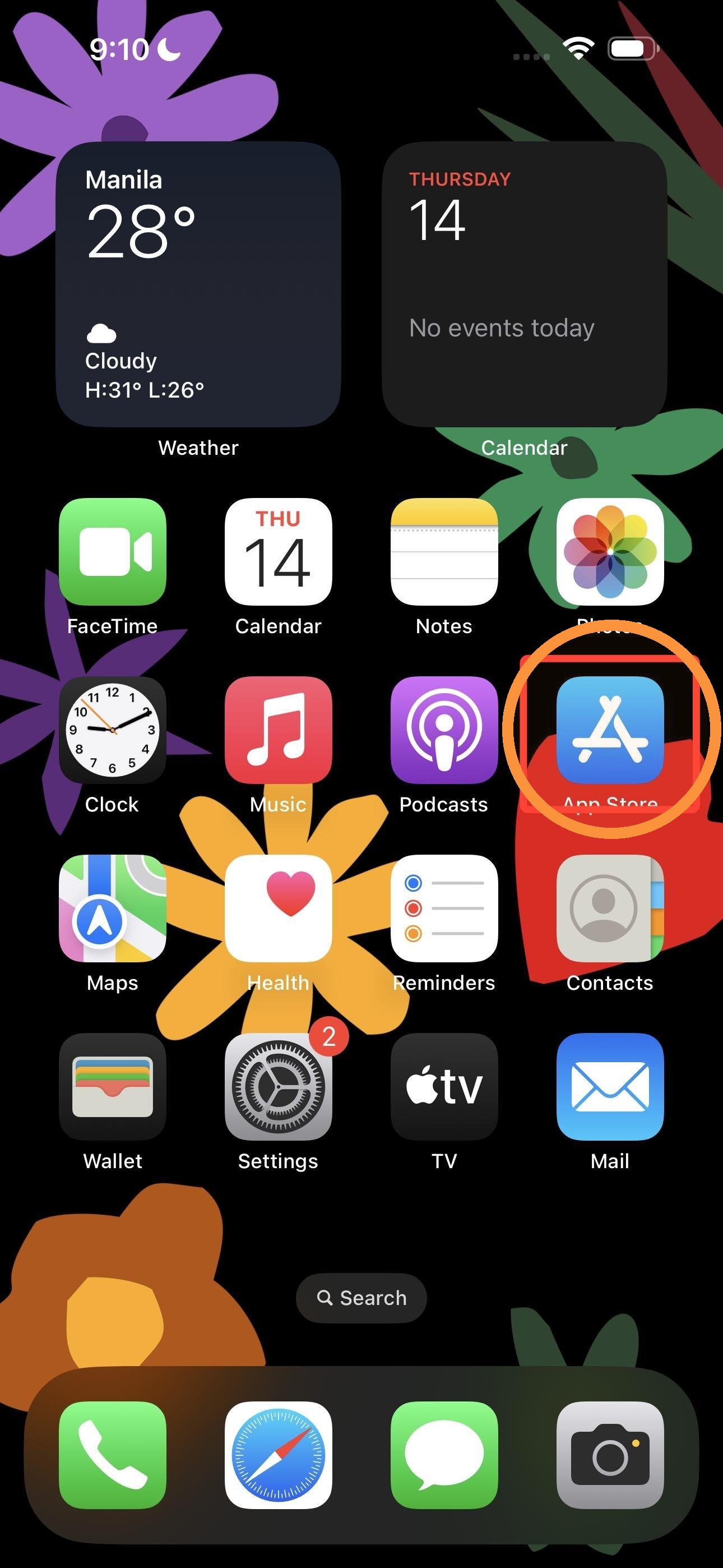
Step 1. Start your device and tap on the Play Store for Android Phone
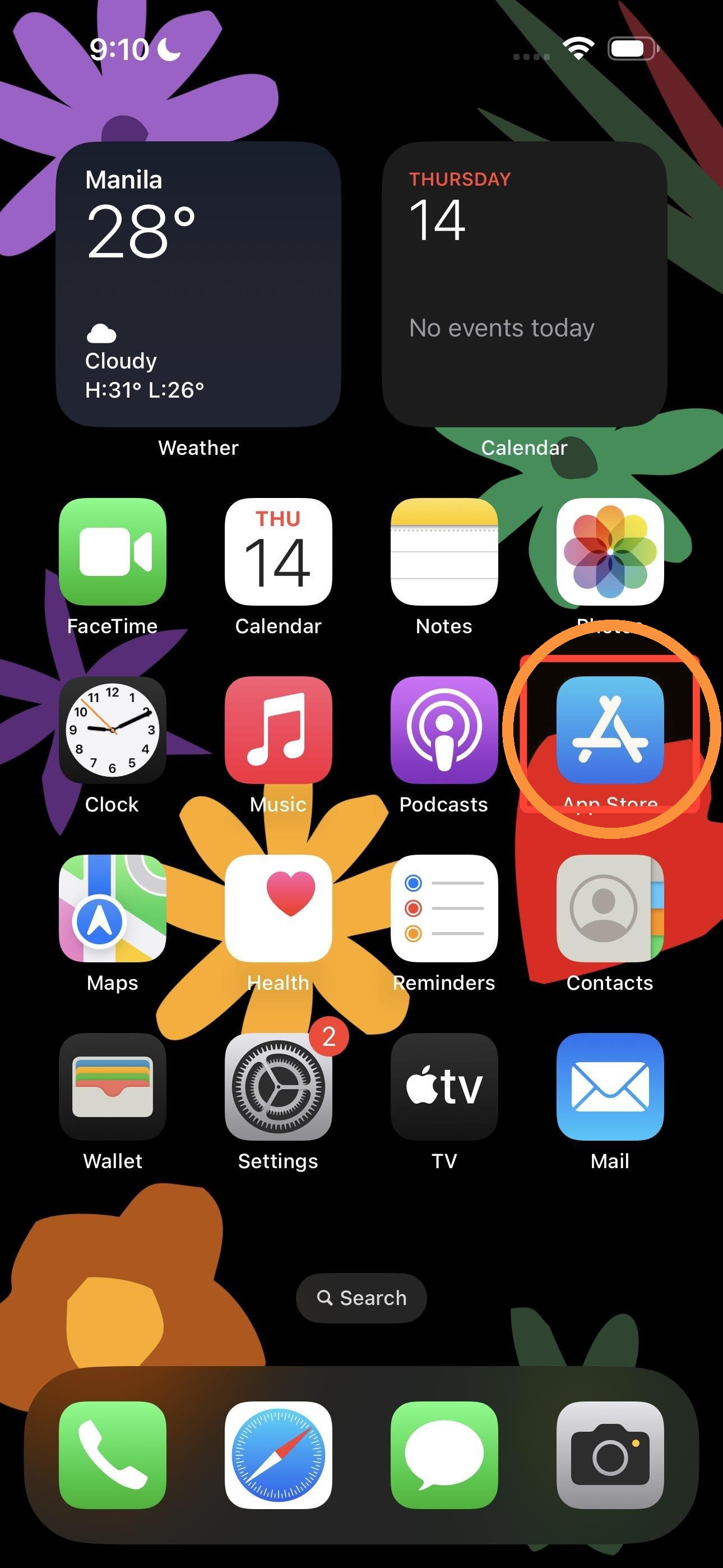 Or start your device and tap on the AppStore for iPhone
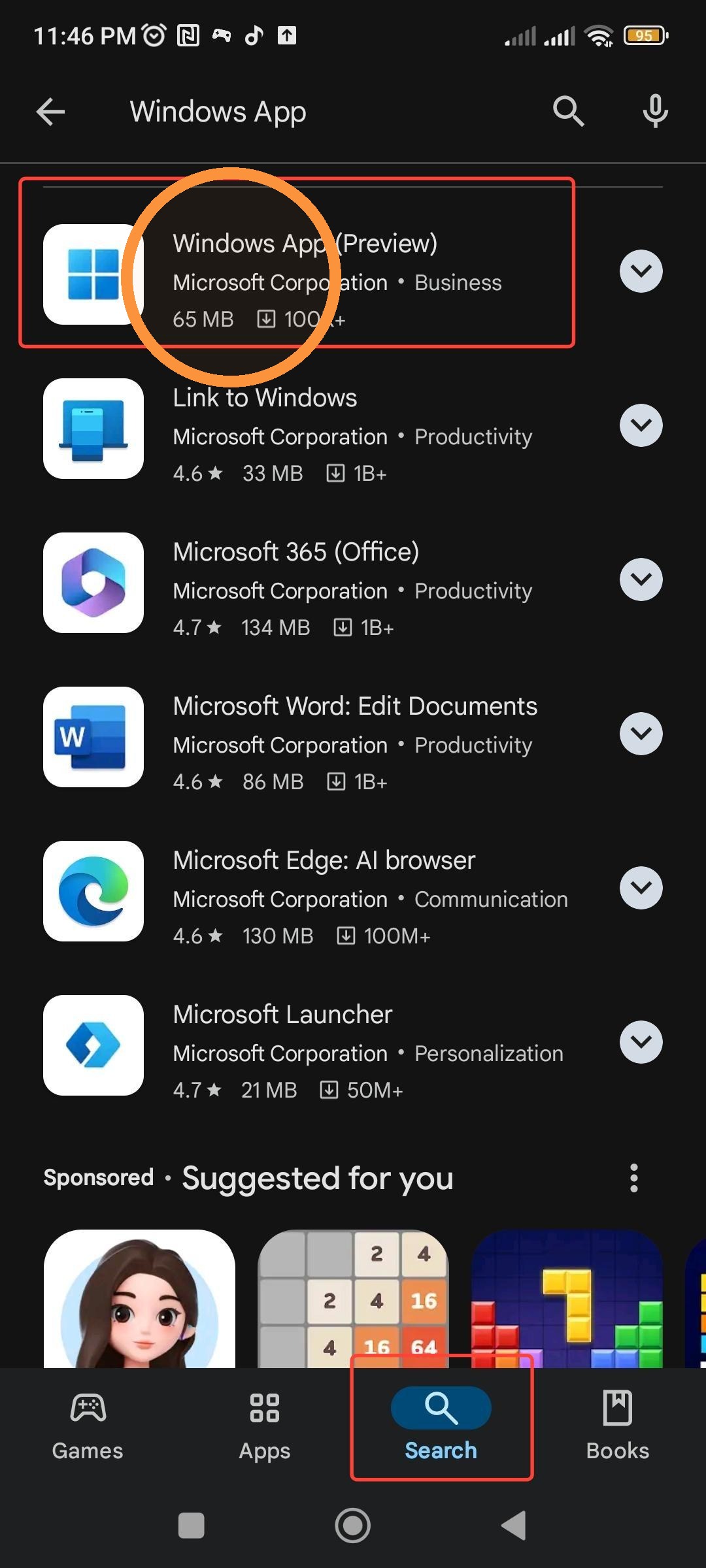
Step 2. Go to search icon and type Windows App
Step 3. Download and install the App
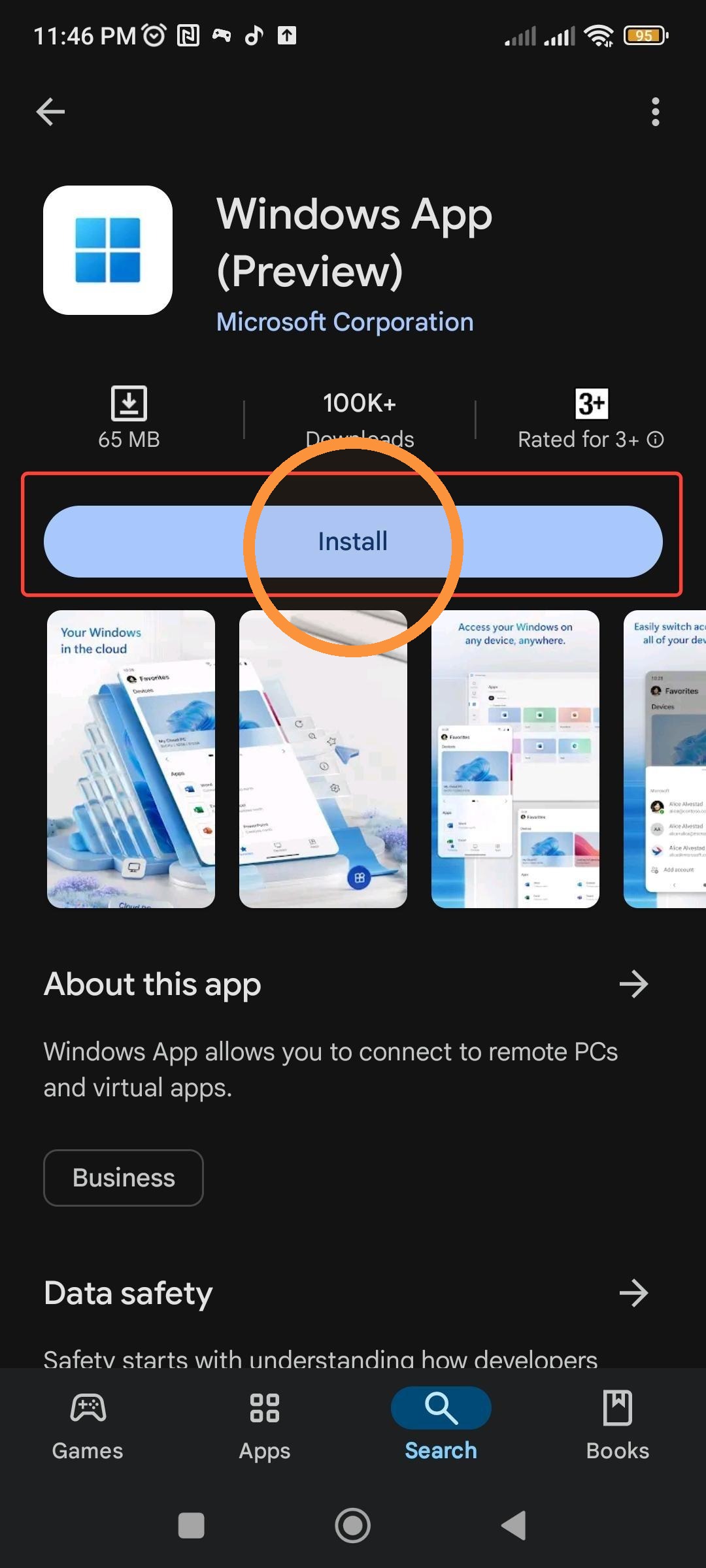
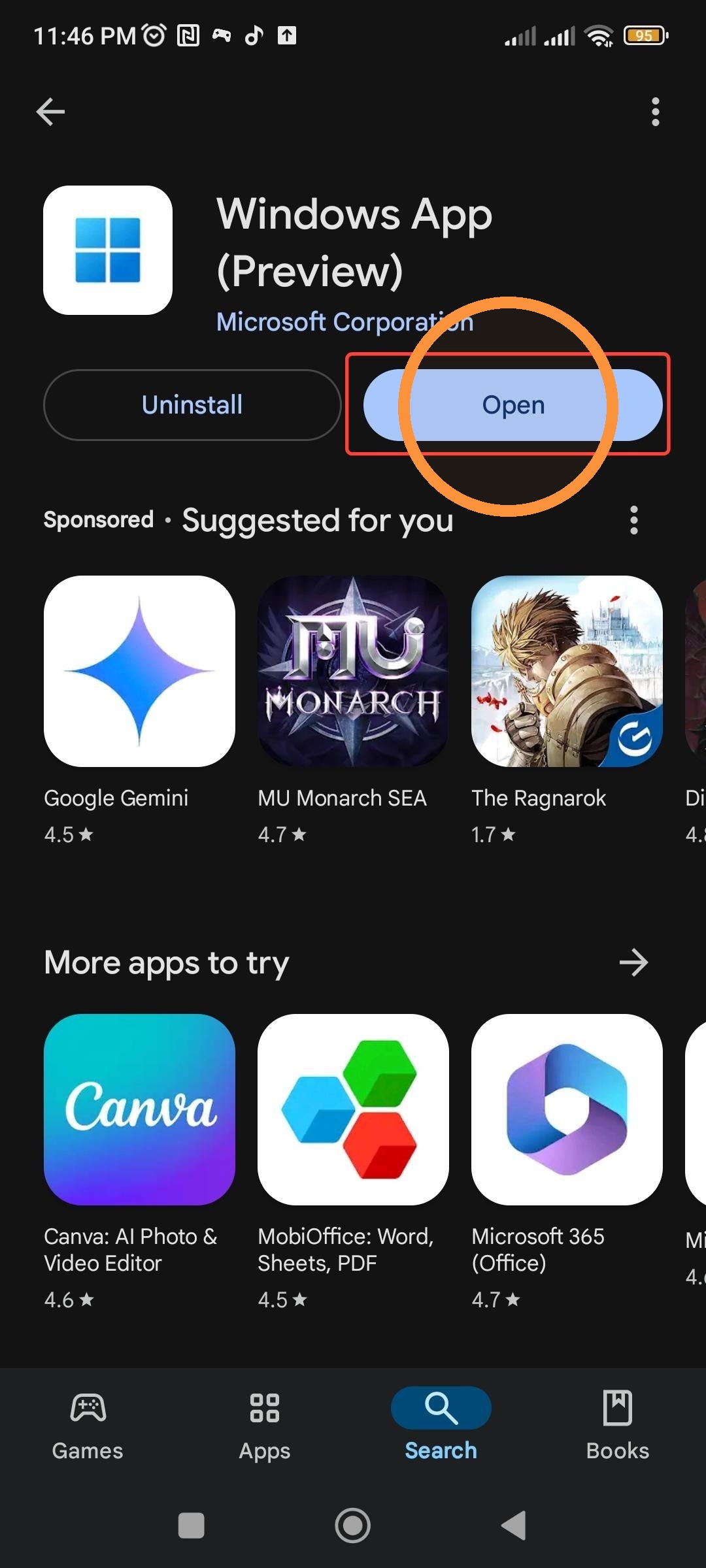
Step 4. Once installed tap on Open
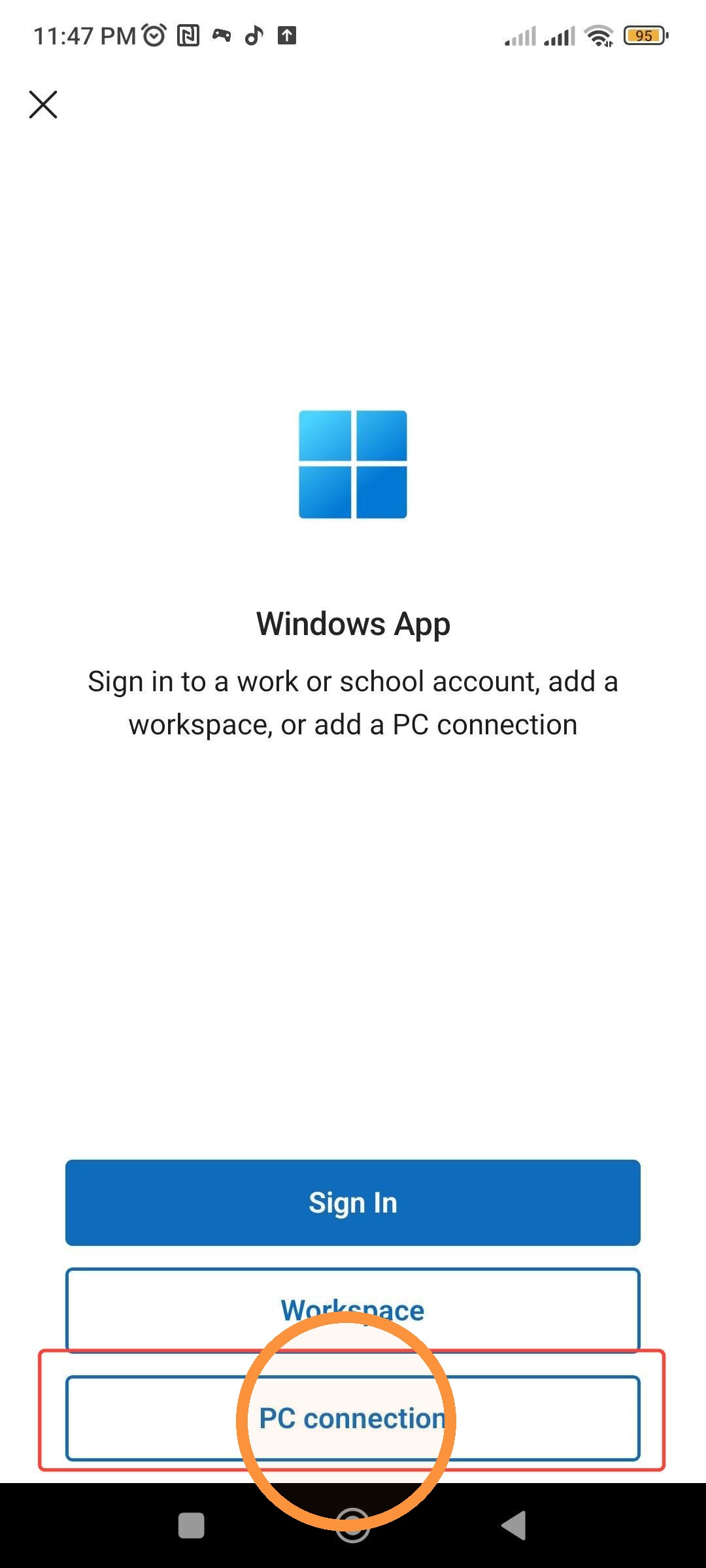
Step 5. Tap on the PC Connection
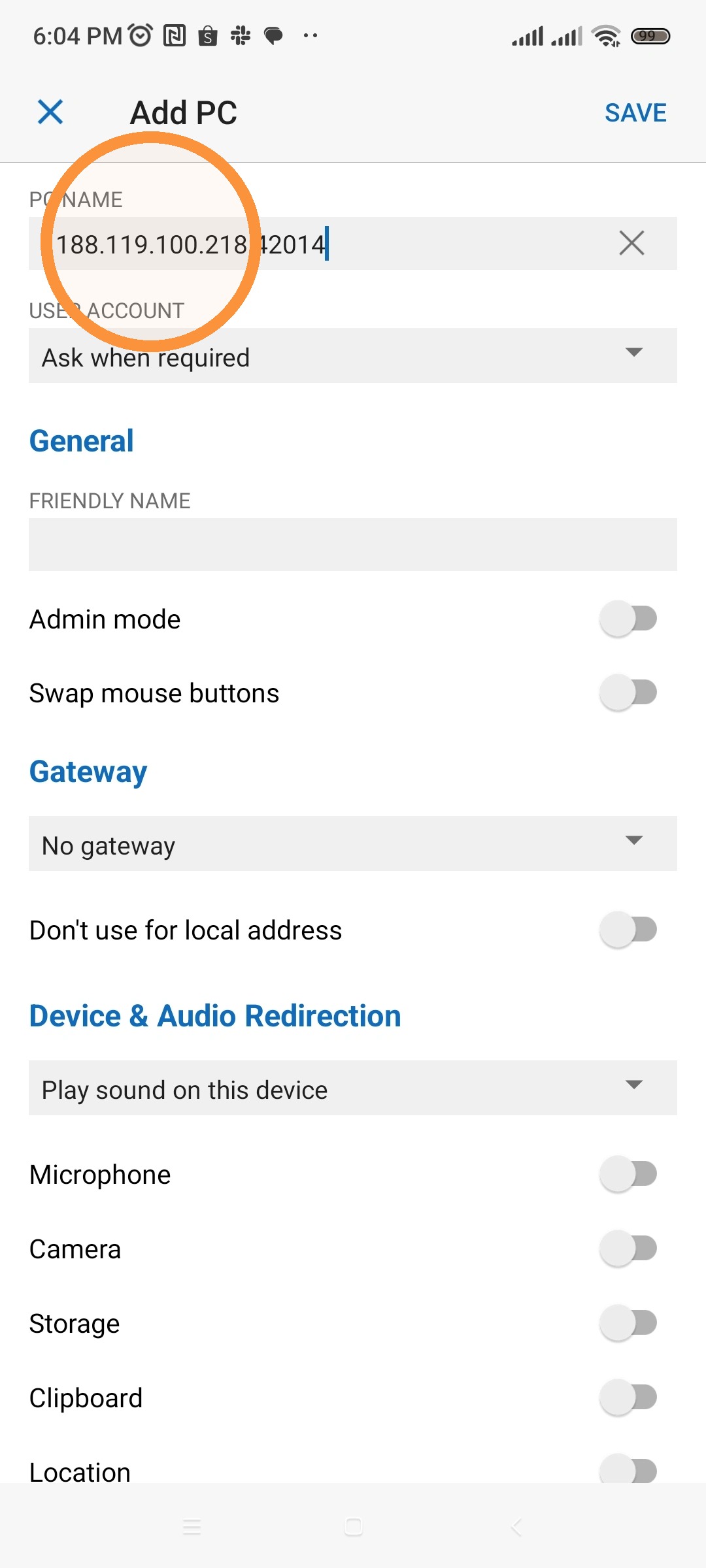
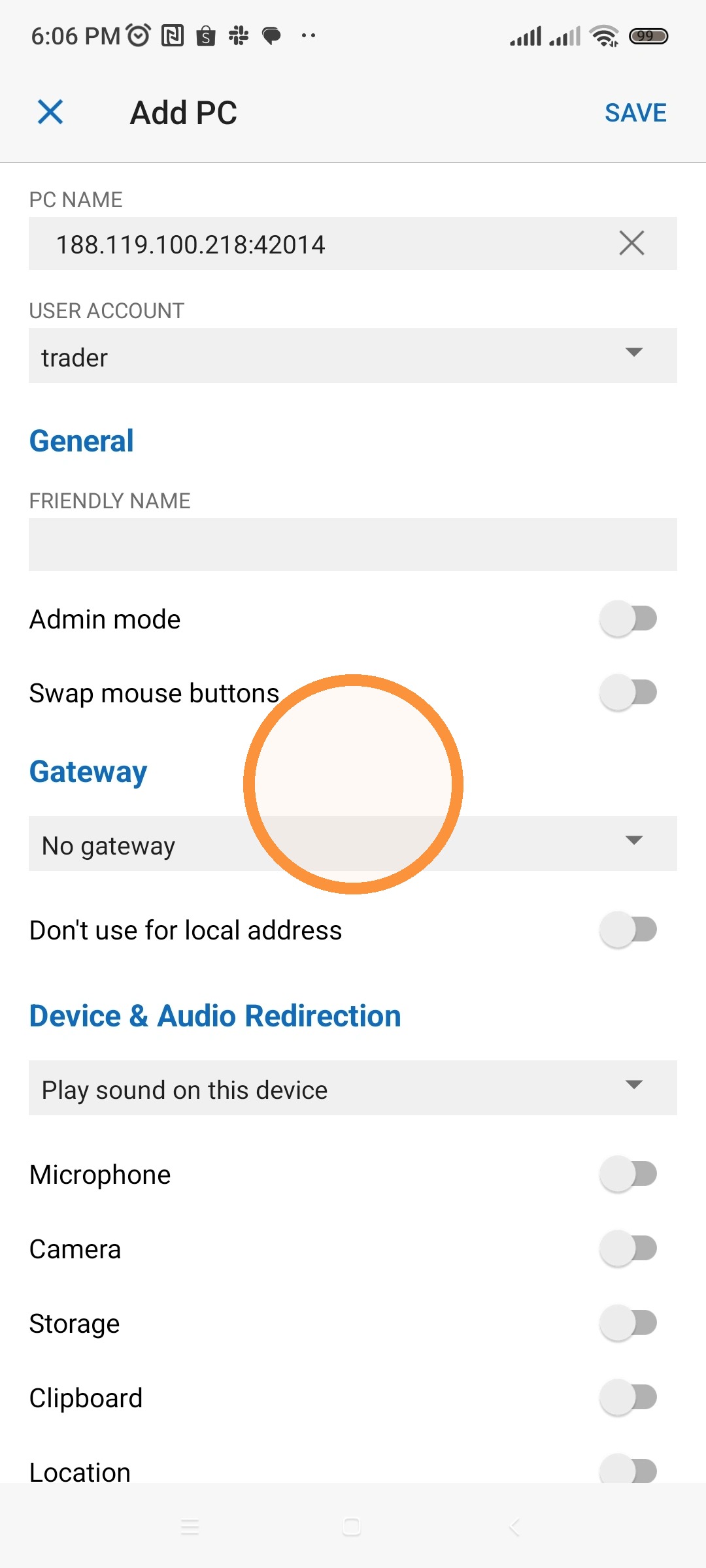
Step 6. Add the VPS IP:Port from your welcome email.
Then tap on User Account and choose Add User Account
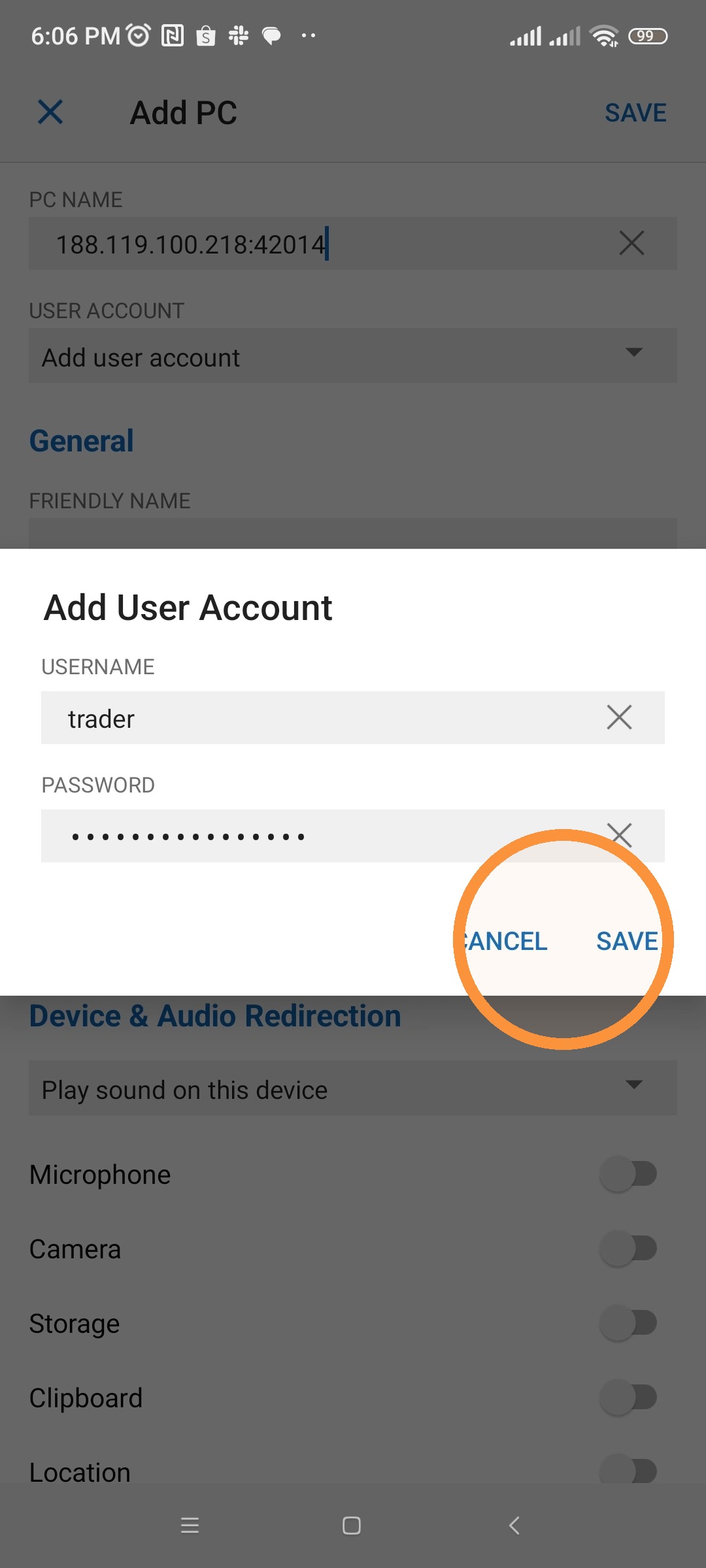
Step 7. Copy and paste the username and password from the email (make sure there are no spaces at the end of the password). Then tap Save
Step 8. Once done, tap on Save on the top right corner
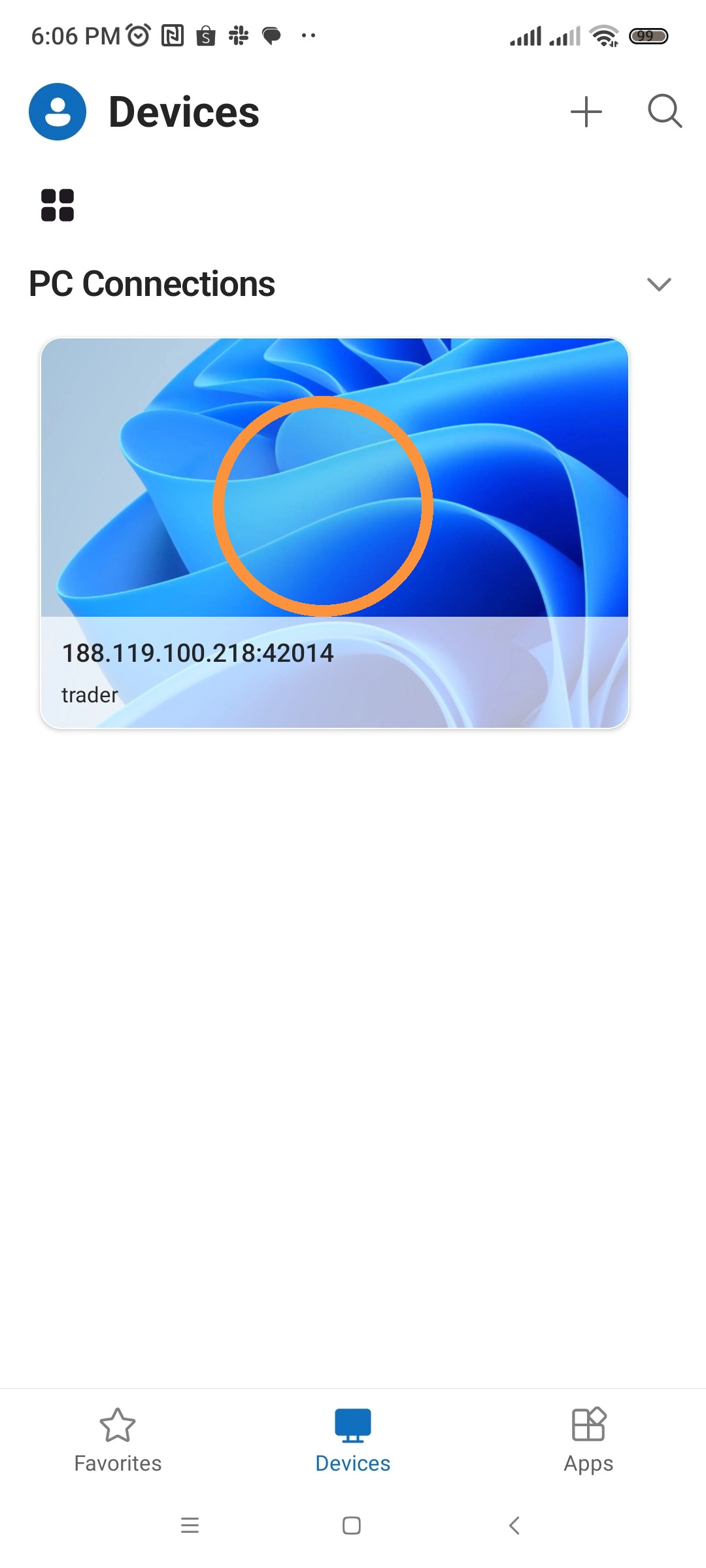
Step 9. Tap on the VPS under PC Connections
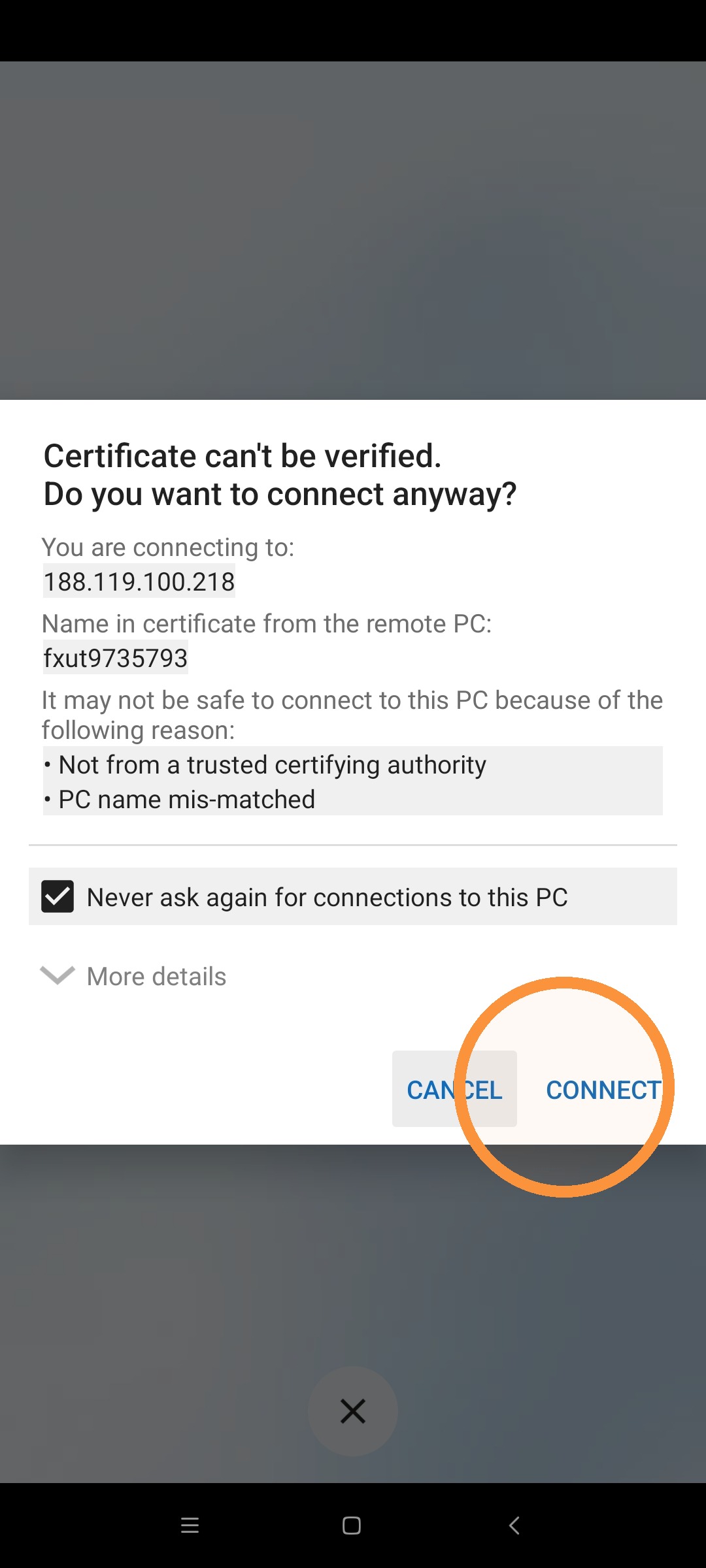
Step 10. A certificate warning should pop up, select “Never ask again for connections to this PC" and tap on CONNECT.
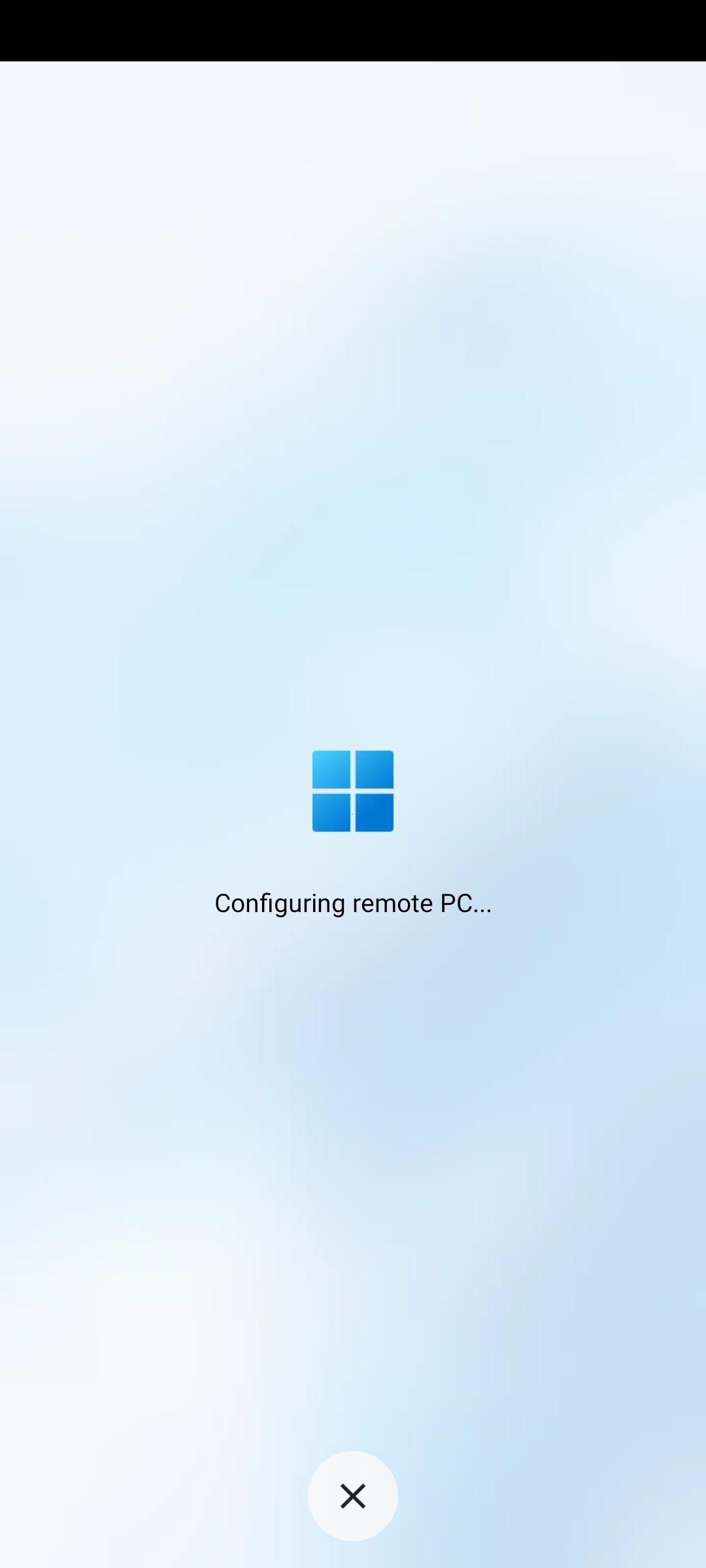
Step 11. A configuring Remote PC should pop up, wait until the next screen shows up.
Step 12. That's it. You should see your VPS Desktop now, and you can take it anywhere you go with you!
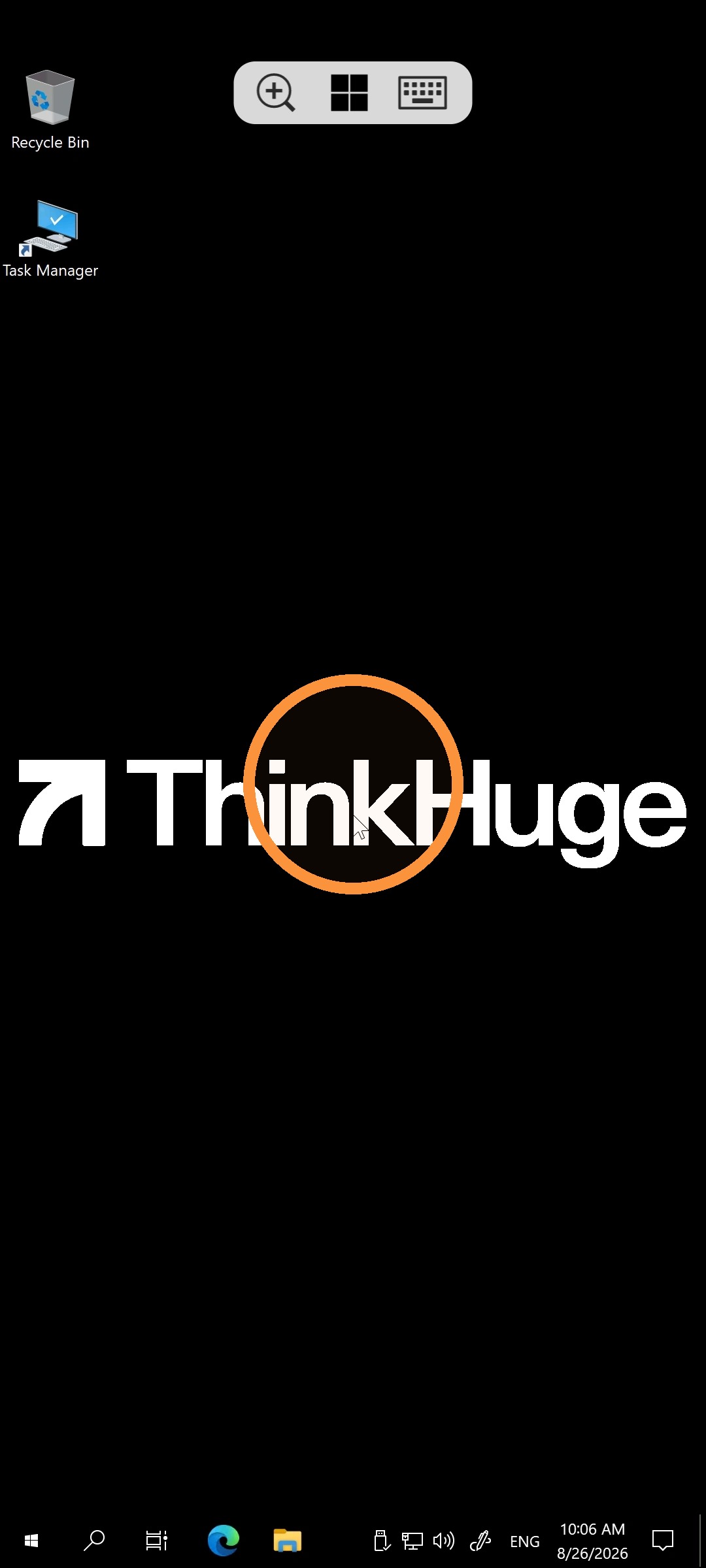
Once connected, you can use your mobile device to remotely access your VPS much like you would from a computer. For best experience, use a stable Wi-Fi or mobile data connection and keep your VPS credentials secure.
If you're unable to establish a connection or receive an error while logging in, double-check your login credentials first. If the issue persists, contact our 24/7 Support Team for help.
Was this article helpful?
That’s Great!
Thank you for your feedback
Sorry! We couldn't be helpful
Thank you for your feedback
Feedback sent
We appreciate your effort and will try to fix the article