Restarting your VPS can be useful when troubleshooting system issues, completing software or Windows updates, or applying changes that require a reboot. When you’re already connected to the VPS, you can safely restart it directly from the Windows interface.
This guide walks you through the proper way to reboot your VPS while logged in.
Before you start: Save any open work and close applications that may be affected by the restart. If you’re running trading platforms, Expert Advisors, or other automated applications, make sure they can safely be stopped before rebooting.
Step 1. While logged in to your VPS, click on Start
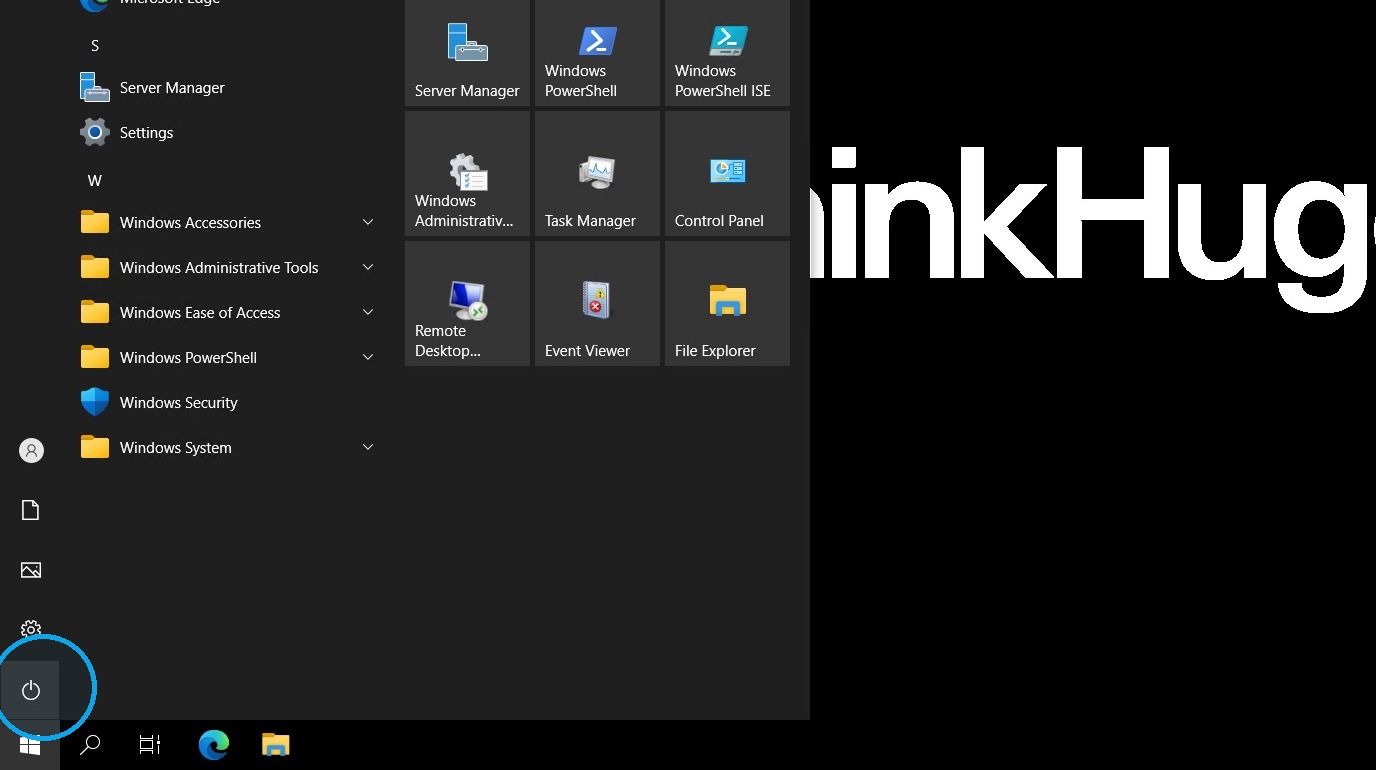
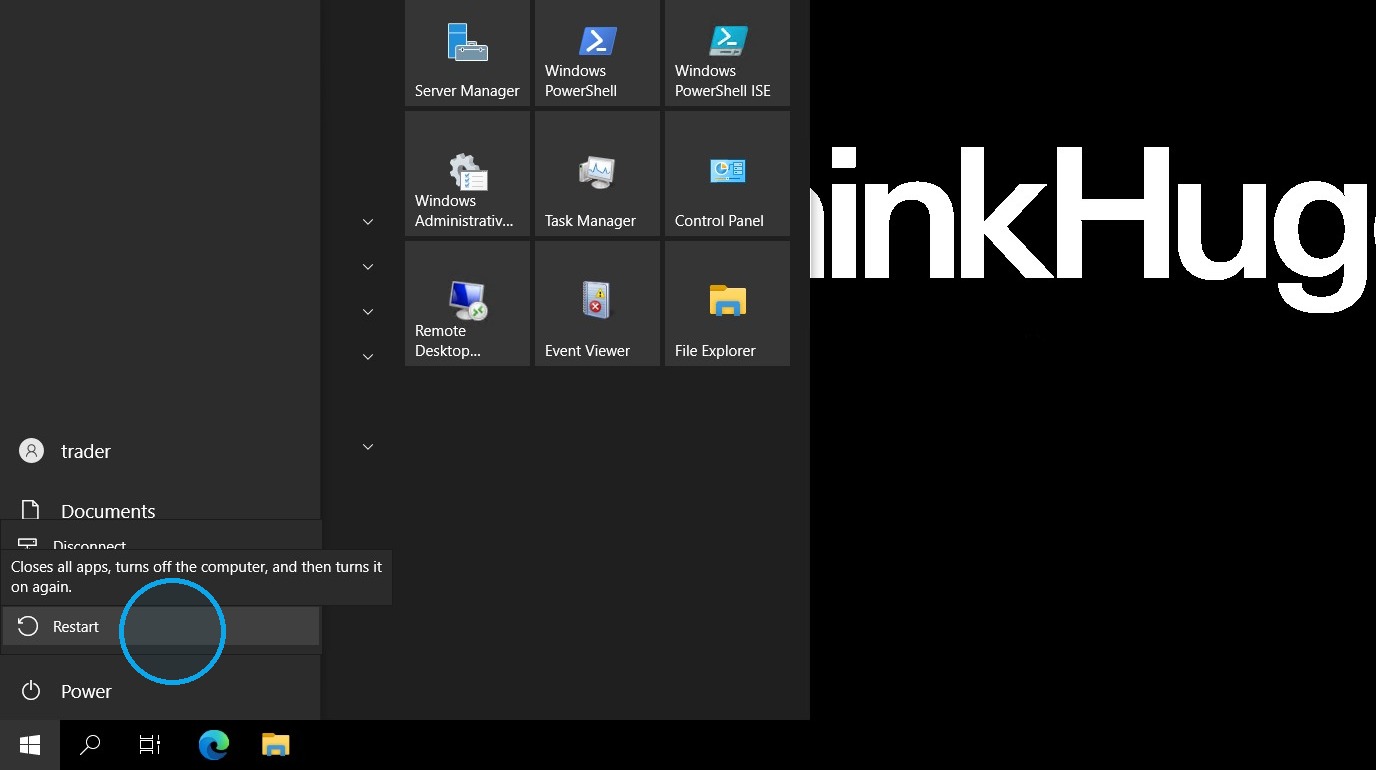
Step 2. Then click on the power icon then Restart
Step 3. It should prompt you about the session ending, just click OK
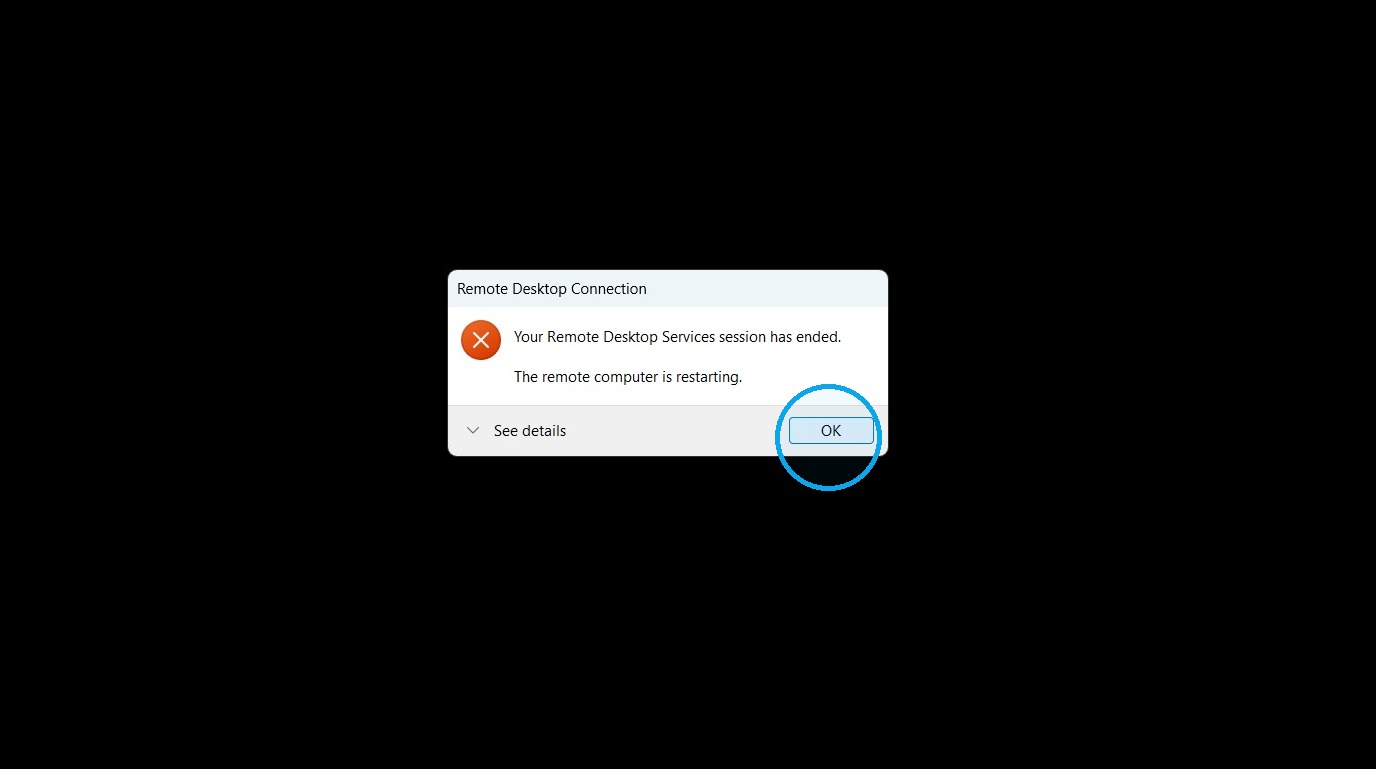
After selecting Restart, your Remote Desktop session will disconnect and the VPS will temporarily become unavailable while Windows shuts down and starts back up. This is expected and does not necessarily indicate a problem with the VPS.
Allow a few minutes for the VPS to fully restart before attempting to reconnect. Once you’re back in, check that your applications and services are running normally.
Was this article helpful?
That’s Great!
Thank you for your feedback
Sorry! We couldn't be helpful
Thank you for your feedback
Feedback sent
We appreciate your effort and will try to fix the article