When you use your VPS for MT4, MT5, trading EAs, or other applications, it’s important to disconnect from your VPS correctly when you’re finished using it. The good news is: you do not need to shut down your VPS every time you leave.
Simply disconnecting from Remote Desktop allows your VPS and the applications running on it to continue operating.
If you are using your VPS for automated trading, these are the things to remember before you disconnect:
- Make sure MT4/MT5 is still running.
- Make sure your EA is running and enabled.
- Check that there are no important tasks or updates waiting for your attention.
- If you have open trades, make sure your trading strategy is set up as intended.
Once everything looks good, you can safely disconnect.
Here's how to do it while keeping your VPS working :
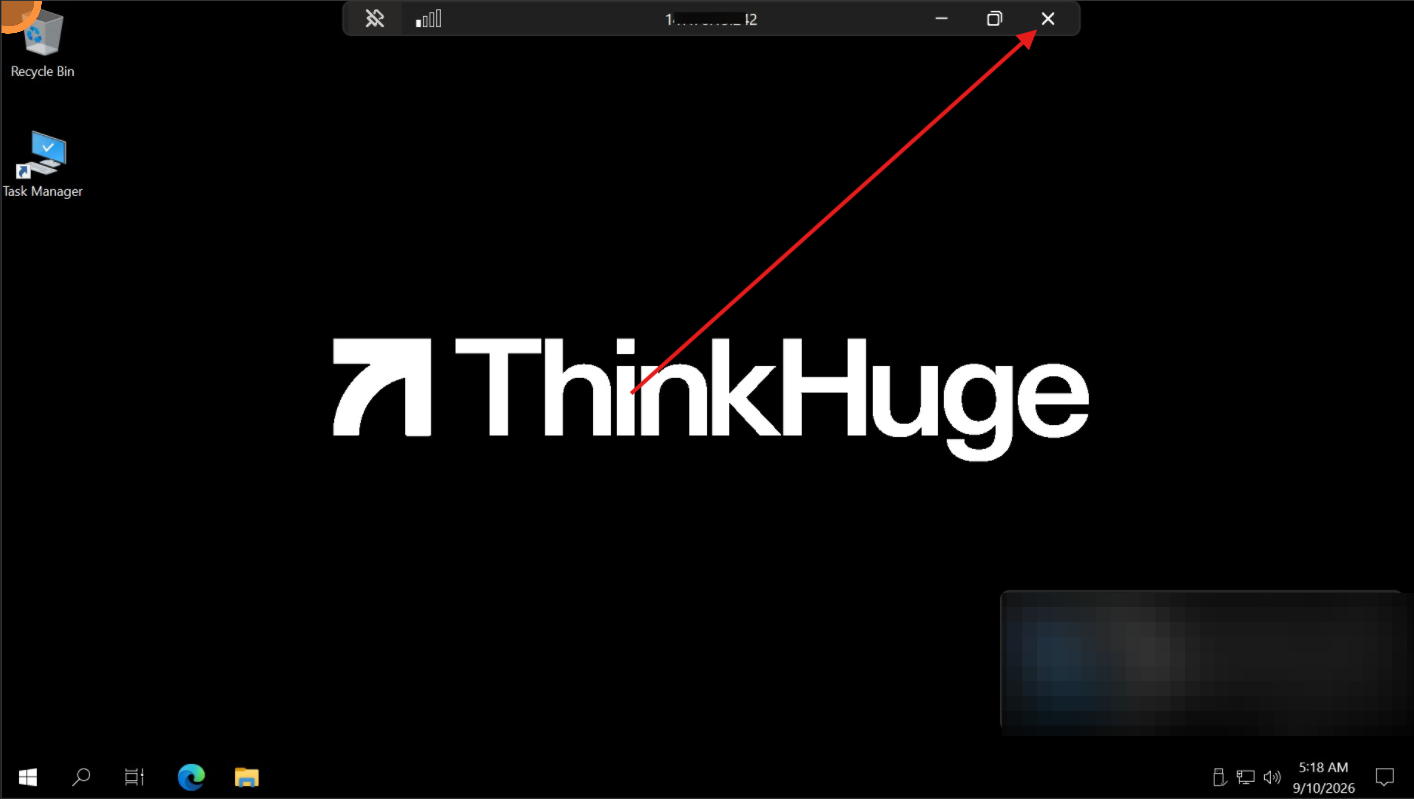
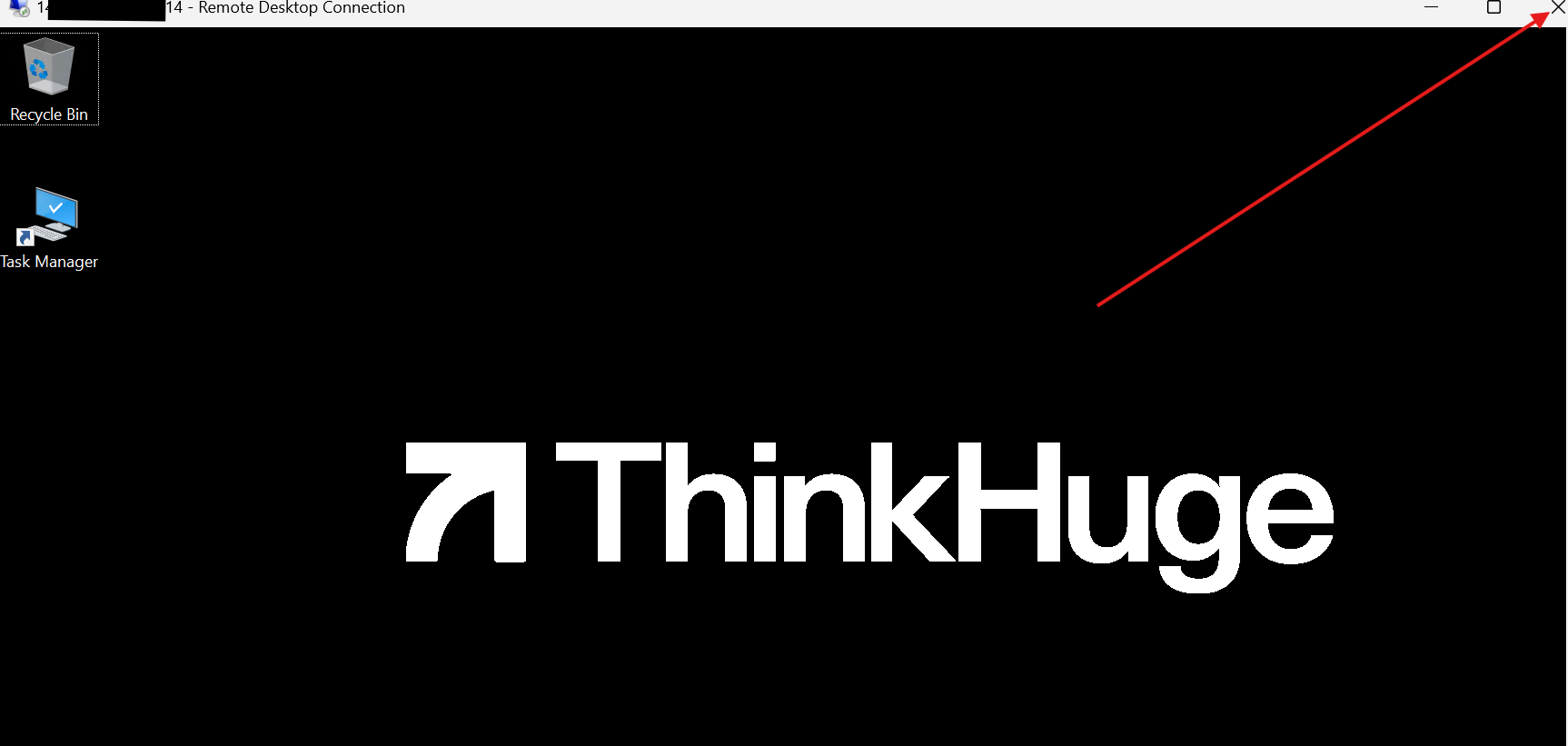
OPTION 1: Disconnect from RDP Window (Full or Window View)
- Move your mouse to the very top of the screen
- The Remote Desktop toolbar will appear
- Click the X / Close button
- Select “Disconnect” if prompted
Full View
Window View
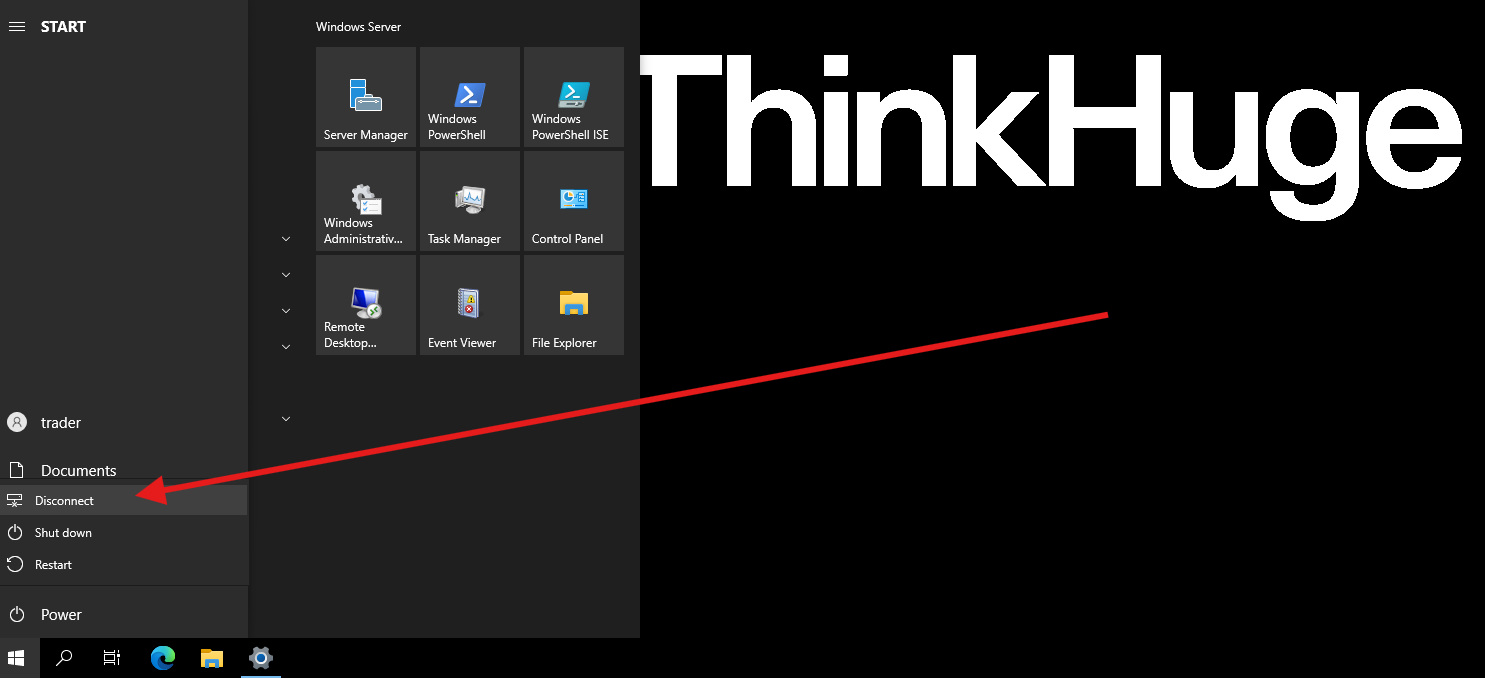
OPTION 2: Disconnect from the Windows Start Menu
You can also disconnect from inside the VPS:
- Click the Windows Start button.
- Click the Power icon.
- Select Disconnect.
Do not select:
- ❌ Shut down
- ❌ Restart
Disconnect vs. Sign Out vs. Shut Down
These options can sound similar, but they do different things:
| Option | What happens? | Trading applications |
|---|---|---|
| Disconnect | Closes your RDP connection but keeps the VPS session running | ✅ Continue running |
| Restart | Reboots the VPS | ⚠️ Trading applications temporarily stop |
| Shut down | Turns off the VPS | ❌ Trading applications stop |
Finished using your VPS? Just close the RDP window. Disconnecting from RDP does not turn off the VPS itself. That's all you have to bear in mind to avoid any disruption on your trades.
Was this article helpful?
That’s Great!
Thank you for your feedback
Sorry! We couldn't be helpful
Thank you for your feedback
Feedback sent
We appreciate your effort and will try to fix the article